Guide
How to Convert HEIC to JPG on Windows (Free, No Install)
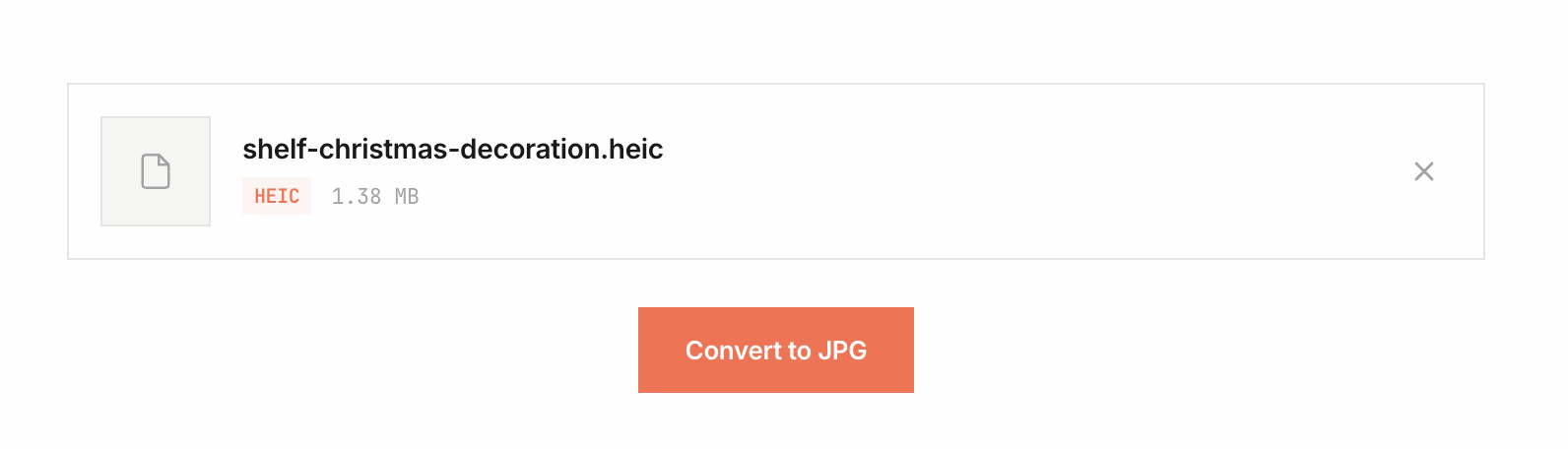
To make an iPhone HEIC photo easier to open on Windows or submit to a website, convert a copy to JPG. You can use the NoFileUpload HEIC to JPG Converter in your browser without sending the file to a conversion server.
Convert a HEIC photo locally
- Open the HEIC converter and select a HEIC or HEIF file from your device.
- Choose JPEG output and review the quality and metadata options shown by the tool.
- Convert the file, inspect the preview, and download the JPG copy.
- Open the downloaded JPG in the app or website where you need to use it.
For multiple photos, use Bulk HEIC to JPG. If a file cannot be decoded, keep the original and try an application with support for that file's HEIF variation. Browser, codec, memory, and source-file differences can affect conversion.
JPG conversion is not lossless
JPEG uses lossy compression. A high quality setting can preserve a useful visual result, but converting may change pixels, color handling, metadata, or file size. Keep the HEIC original for archival or editing work. Review the output instead of relying on a fixed promise of identical quality.
If location privacy matters, inspect the result with the metadata viewer. Metadata preservation options can retain GPS information. You can use the metadata remover before sharing a copy.
Open HEIC directly with Windows Photos
Conversion is optional if your Windows installation can decode the original format. Microsoft documents HEIF Image Extensions and HEVC Video Extensions for Photos workflows. HEIF and HEVC are separate extensions; the required codec and any cost depend on the device, installed software, and current Store listing.
Follow Microsoft's Photos extension instructions and check the official Microsoft Store listing for your system. Do not assume that a free device-manufacturer HEVC package is available on every PC. Installing a codec lets supported apps open a format; it does not itself create a JPG copy.
Take future iPhone photos as JPEG
On a compatible iPhone, go to Settings → Camera → Formats → Most Compatible. Apple says this uses JPEG for new photos and H.264 for new videos. It does not convert HEIC files already in your library.
Apple also explains that supported transfer and sharing workflows can convert media automatically. The result depends on the receiving app and method. See Apple's HEIF and HEVC guide for current device and transfer instructions.
Which option should you use?
- A JPG for a form, email, or older app: convert a copy and check it in the destination.
- Open and keep the HEIC original: use software with the required format support.
- A set of iPhone photos: use the bulk converter and retain the originals.
- Future camera compatibility: consider Most Compatible, understanding the storage and format tradeoffs.
Reviewed October 16, 2026 against the linked Apple and Microsoft documentation.
HEIC to JPG Converter
Convert Apple HEIC/HEIF photos to JPG with adjustable quality. Process files locally in your browser without uploading them.