How to Remove Author & Hidden Info from a PDF Before Sending It
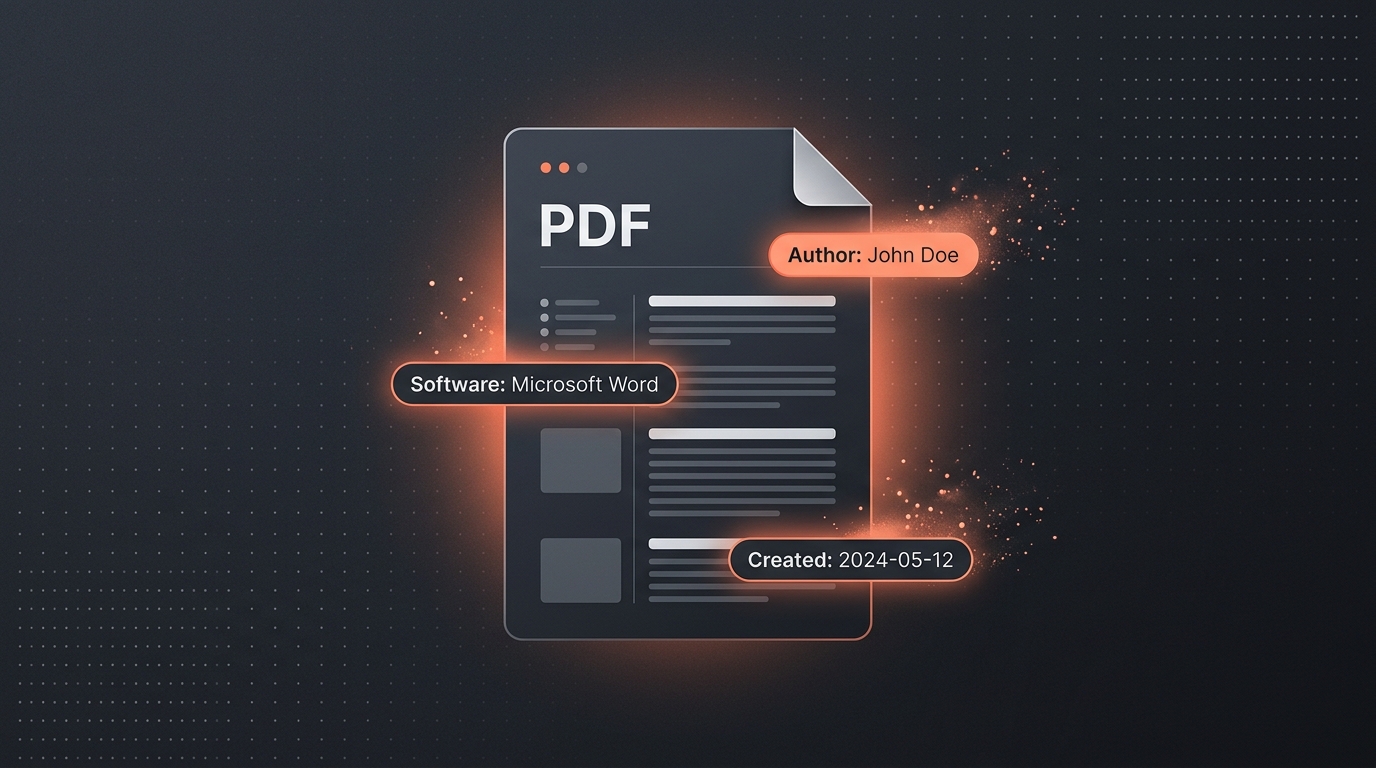
When you export a document to PDF from Microsoft Word, Google Docs, Apple Pages, or Adobe InDesign, you see clean text and polished styling. But behind those visible pages, your export tool automatically injects a hidden payload called Document Information Dictionary (InfoDict) and XMP metadata.
This invisible data routinely reveals your full real name, company or employer name, computer login username, operating system, software license details, and exact creation and modification timestamps.
Whether you are sending a resume to a recruiter, submitting a confidential business proposal, or uploading a legal affidavit, leaving this metadata intact is an unnecessary privacy leak. Here is an honest breakdown of what PDFs hide and how to strip it cleanly in seconds without giving third-party cloud servers access to your private files.
What Hidden Information Does a PDF Actually Contain?
When a PDF reader or search crawler inspects a PDF file header, it can read dozens of standardized metadata tags. The most common fields include:
| Metadata Tag | What It Reveals | Why It Matters |
|---|---|---|
| Author | Your Windows or Mac account user name, or your Microsoft 365 profile name. | Reveals your identity on anonymous submissions, bids, or whistleblowing documents. |
| Creator / Producer | The software tool used (e.g. macOS 15.2 Quartz PDFContext or Acrobat Distiller 21.0). | Reveals software versions, OS environment, and potential software vulnerabilities. |
| Creation Date | Exact minute and second the draft was initially created, including timezone offset. | Can expose late work, timeline discrepancies in legal disputes, or geographic timezone clues. |
| ModDate | Timestamp of the most recent save or edit operation. | Confirms whether a document was modified after submission deadlines. |
| Company / Subject | Organization name tied to your office suite license. | Can reveal previous client templates or current employer names on a resume. |
Real Scenarios Where PDF Metadata Causes Trouble
- Sending a resume while employed: If you export your resume from a work-provided laptop, Word often bakes your current employer's corporate license into the PDF author field. A hiring manager can see that you prepared your resume during work hours or using company resources.
- Recycling client proposals: If an agency duplicates an old contract template for a new client, the internal title or subject metadata might still name the previous client or reveal previous pricing notes.
- Academic & blind peer review: Journal submissions requiring double-blind review are routinely disqualified because the author's name remains visible inside the PDF properties.
- Legal filings & public releases: High-profile legal cases have repeatedly made headlines because redaction boxes were drawn over text without removing the underlying metadata layer.
The Danger of Using "Free Online PDF Tools"
When people search for "remove metadata from PDF online", search engines usually show popular PDF portals. However, almost all of those traditional services require you to upload your complete PDF to their cloud servers.
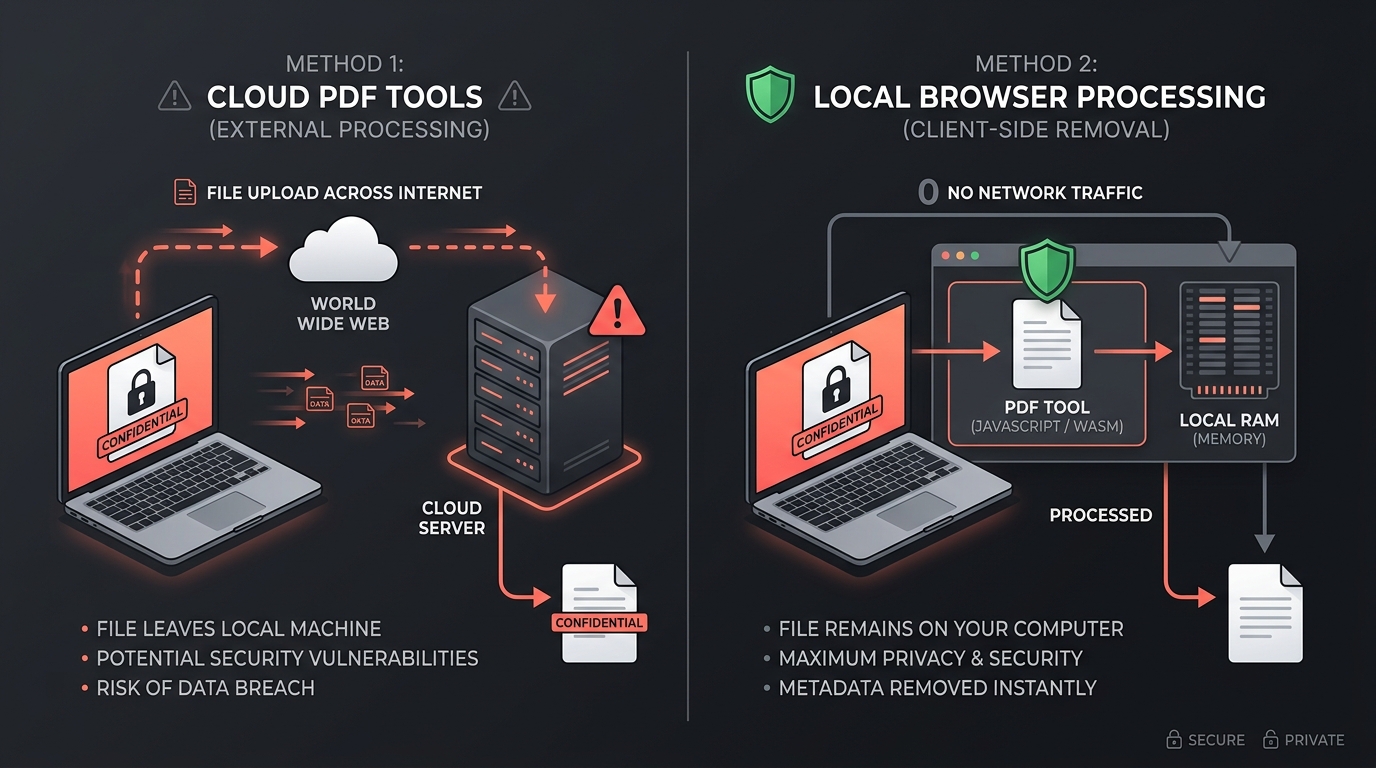
If you are cleaning a confidential NDA, a financial tax document, or personal medical paperwork, sending that file to a remote server defeats the purpose of privacy. You cannot verify how long the file sits in their cloud buckets or who has access to it.
How to Remove PDF Author & Metadata in Your Browser (No Uploads)
You can strip all metadata without installing Adobe Acrobat Pro ($239/year) and without uploading your file across the internet. Here is how to do it in seconds with NoFileUpload:
- Open the free PDF Metadata Remover tool.
- Drag and drop your PDF file directly into the dropzone.
- Your browser reads the binary structure of the PDF locally using JavaScript. You will instantly see all current metadata tags detected inside the file.
- Click "Remove Metadata & Download". The tool reconstructs the document dictionary with all Author, Creator, Producer, Title, and Timestamp tags wiped clean.
- Your sanitized PDF downloads instantly. Not a single byte of your document was uploaded to any server.
PDF Metadata Remover
Strip author name, creation dates, software info, and all hidden metadata from PDF files before sharing. Protect your privacy.
How to Verify Your PDF is 100% Clean
After downloading your cleaned PDF, you can verify that the author data is truly gone using any of these methods:
- Using our viewer: Drop the cleaned file into our PDF Metadata Viewer. You will see that Author, Producer, and XMP entries now show as empty or absent.
- In Adobe Acrobat / Reader: Open the file, press Ctrl + D (or Cmd + D on Mac) to open Document Properties. Look under the Description tab — all fields will be blank.
- In Chrome / Firefox: Open the PDF in your browser, click the menu button, and select Document Properties.
Summary Checklist
Whenever you are sharing a PDF externally:
- Never assume converting Word/Docs to PDF removes author info — it actually locks it in permanently.
- Inspect the document properties before sending job applications, legal papers, or sales quotes.
- Avoid cloud converter sites for sensitive paperwork. Always use in-browser, client-side tools so your confidential data never leaves your device.