How to View EXIF Data of Any Photo (Without Uploading It)
So you've got a photo and you want to know what's hidden inside it. Maybe you want to check the camera settings, see if there's GPS data, or just figure out when it was taken.
The problem? Most online EXIF viewers require you to upload your photo to their server. That kind of defeats the purpose if you're checking metadata because you're worried about privacy.
Here are a few ways to view EXIF data — including one that doesn't involve uploading your photo anywhere.
Method 1: Use our EXIF Viewer (no upload, free)
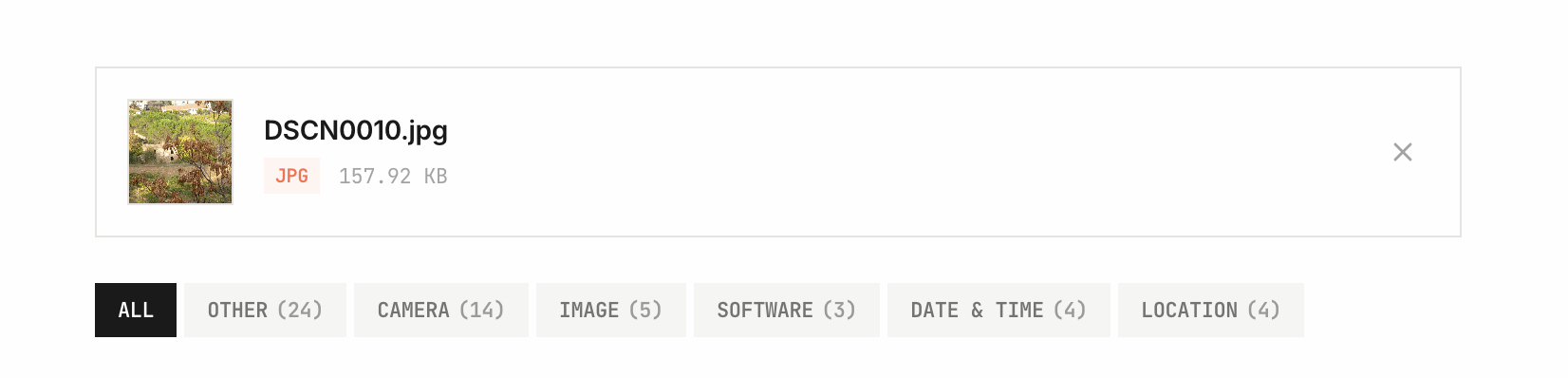
This is the quickest option. Our Image Metadata Viewer runs entirely in your browser. You drop your photo in, and it reads the EXIF data right there on your device. Nothing gets sent to any server.
Here's what you'll see:
- Camera info — make, model, lens
- Settings — aperture, shutter speed, ISO, focal length
- GPS — latitude, longitude (if location tagging was on)
- Date/time — when the photo was actually taken
- Software — if the image was edited, what software was used
- File details — dimensions, file size, format
The data is organized into tabs so you can quickly jump to what you're looking for. It works with JPEG, PNG, TIFF, WebP, and HEIC files.

Method 2: On Windows (built-in)
If you're on Windows, you can check basic EXIF data without any tools:
- Right-click the image file
- Click Properties
- Go to the Details tab
You'll see camera model, date taken, dimensions, and some settings. It's pretty basic though — you won't get the full picture. And GPS data is often hard to find in this view.
Method 3: On Mac (built-in)
On a Mac:
- Open the photo in Preview
- Go to Tools → Show Inspector (or press Cmd + I)
- Click the EXIF tab or the GPS tab
This gives you a decent overview, but it's not the most user-friendly layout. Fine for a quick check though.
Method 4: On iPhone
Starting with iOS 15, you can tap the info button (the "i" icon) on any photo in the Photos app to see some metadata. It shows the camera, settings, date, and location on a map.
For more detailed EXIF info on iPhone, you'd need to open the photo in our web-based viewer using Safari. It works on mobile too.
Method 5: On Android
Google Photos shows basic info when you swipe up on a photo or tap the three-dot menu → Details. You'll see the date, location (if available), and device.
For the full EXIF breakdown, again, our web tool works in any mobile browser.
Why would you want to check EXIF data?
A few common reasons:
- Privacy check — You want to know if a photo has GPS data before sharing it online. If it does, you can remove it first.
- Photography learning — You see a great photo and want to know what settings were used. Checking the EXIF tells you the exact aperture, shutter speed, and ISO.
- Verification — You want to confirm when or where a photo was actually taken. Useful for journalism, legal stuff, or just settling an argument.
- Organizing — You're sorting through old photos and want to know dates and locations.
What if a photo has no EXIF data?
Not all photos have EXIF data. It can be missing if:
- The photo was downloaded from a website (many sites strip metadata)
- It was shared through a messaging app that removes EXIF
- Someone intentionally removed the metadata
- It's a screenshot (screenshots usually don't have camera EXIF data)
- It's a PNG created by software, not a camera
If our viewer shows no metadata, it just means there's nothing there. The file is already clean.
Quick recap
- EXIF data is hidden info in your photos — GPS, camera, date, settings
- Our EXIF Viewer shows all of it without uploading your file
- You can also check basic info on Windows, Mac, iPhone, and Android using built-in tools
- If you find sensitive data (like GPS), use our Metadata Remover before sharing
Image Metadata Viewer
View EXIF data, GPS coordinates, camera settings, and hidden metadata embedded in your photos — instantly and privately.
Related tools