Local Processing vs Cloud Processing: What Actually Happens to Your Files
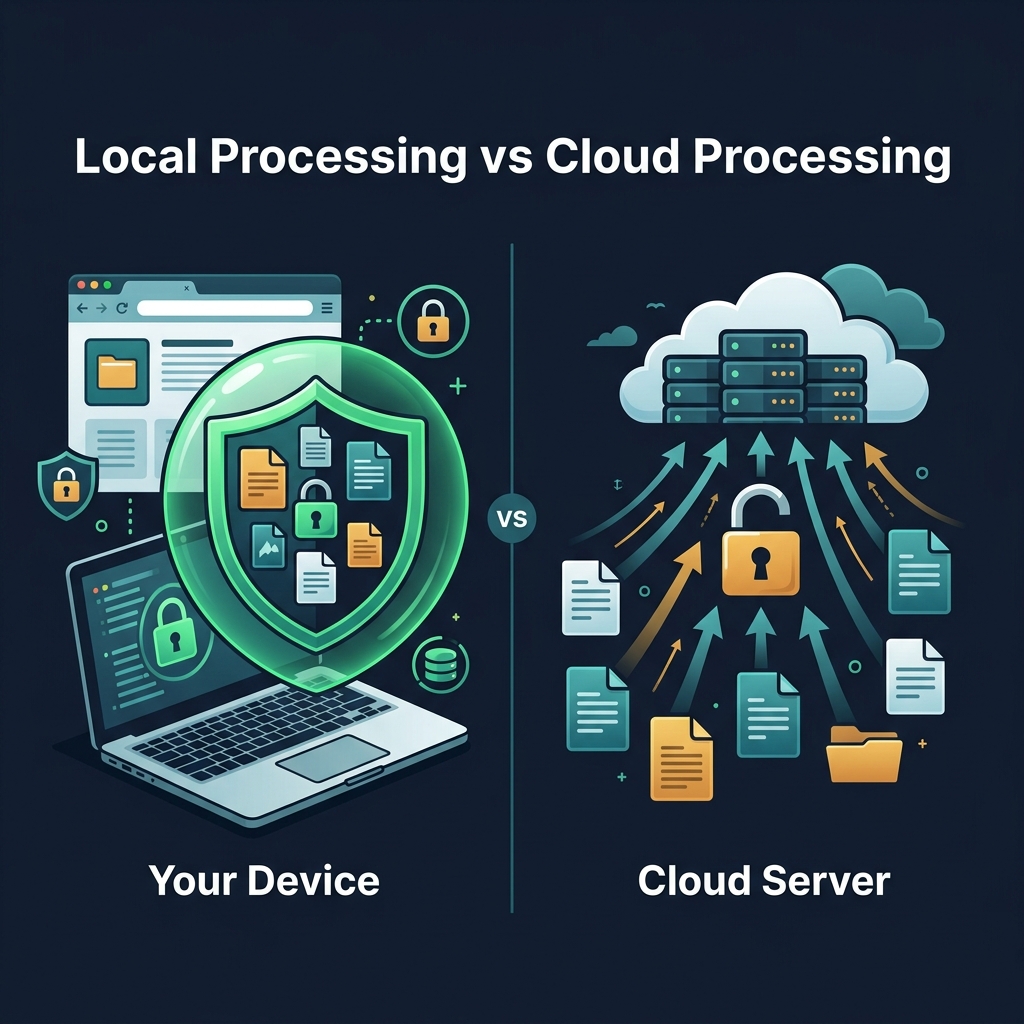
You've used online tools before. You drop a file in, something happens, you get a result. Most of the time you don't think much about what happened in between.
But the "what happened in between" part is actually kind of important — especially when the files you're working with contain personal information, sensitive documents, or anything you wouldn't want a stranger to read.
There are two fundamentally different ways an online tool can process your file. Understanding which one you're using changes what you should and shouldn't put into it.
Cloud processing: how most tools work
The traditional model for web-based file tools is simple: you upload the file, their server processes it, and they send you the result. This is cloud processing.
From a user perspective, it's seamless. You don't see anything happening. But at a network level, the bytes of your file are traveling from your device, across the internet, to someone else's server. That server reads your file, runs software on it, and sends something back.
Examples of tools that work this way: Smallpdf, iLovePDF, many image resizers, cloud-based format converters, most AI photo tools, and plenty of metadata viewers. Uploading is baked into the core of how they're built.
What that actually means
When your file leaves your device and reaches a server, a few things happen:
- The operator of that server has access to your file, at least temporarily
- The file may appear in server logs, access logs, or error logs
- Depending on their infrastructure, the file may be written to disk, cached, or replicated across multiple machines
- Their privacy policy determines what they're allowed to do with it — and most people don't read those
- If their servers are compromised, your file could be part of a breach
Most reputable services delete uploaded files quickly — often within minutes or hours. But "deleted" on a server doesn't always mean the same thing as deleted on your computer. Files may persist in backups, CDN edge caches, or disaster recovery systems.
Local processing: a different architecture
Local (or client-side) processing is a newer approach made possible by how powerful browsers have become. Instead of uploading your file to a server, the tool's processing code runs directly inside your browser, on your device.
Here's what the sequence looks like:
- You open the tool in your browser (this loads the HTML, CSS, and JavaScript from the server — normal web page stuff)
- You select or drop a file
- Your browser reads the file from your local storage into memory — no network request
- The JavaScript code processes the file, entirely within the browser's sandbox
- The result is handed back to you as a download or displayed on screen
At no point does the file content travel over the network. The tool's code is on the server; your file is not.
What modern browsers can do locally
A few years ago, local processing was limited to simple things. Today, browsers can do a lot:
- Image manipulation — resizing, cropping, compression, format conversion using the Canvas API
- Metadata reading and writing — parsing binary EXIF data from JPEG files, reading ID3 tags from MP3s, parsing PDF structure
- File format conversion — converting HEIC to JPG, PDF manipulation, audio format handling
- ZIP archiving — creating compressed archives from multiple files
- WebAssembly — running compiled C/C++ code at near-native speed inside the browser, making even complex processing feasible locally
This is why tools like NoFileUpload can offer image compression, HEIC conversion, EXIF removal, PDF metadata stripping, and audio tag editing — all in the browser without a server-side component.
When cloud processing makes sense
This isn't a case where one approach is always better. Cloud processing has legitimate advantages.
Processing power. Your browser has access to the CPU and memory of your current device. A server farm has vastly more resources. Tasks like AI-based image upscaling, video transcoding, or training-based compression can only be done efficiently server-side.
Complex software. Some tools rely on software that simply doesn't run in a browser. The full ExifTool binary, for example, handles thousands of proprietary metadata tags. Running it server-side means broader compatibility with niche file types.
Collaboration. If you need to share files with others or access them from multiple devices, cloud processing usually means your file is stored somewhere accessible. Local processing by definition doesn't store anything.
When local processing is clearly better
For most everyday file tasks — the kind that don't require server farms or exotic file formats — local processing is the right choice. And specifically when:
The file is sensitive. Medical documents, legal files, personal photos with GPS data, financial spreadsheets, anything with someone else's personal information. These should not be leaving your device unless you have a specific reason and trust the recipient.
The point of the task is privacy. This is the ironic one. If you're removing GPS data from a photo because you don't want strangers to know your location, sending that photo to a cloud server is a problem. You're solving a privacy issue by creating a new one.
You're working with many files. Uploading 50 photos one by one to a cloud service is slow and uses your bandwidth. Local processing handles a batch instantly since nothing is being transferred.
You want speed. Cloud processing requires a round trip over the network. Even with fast internet, this adds latency. Local processing is limited only by your device's CPU, which for simple image tasks is near-instant.
How to tell which type of tool you're using
This is easy to check. Open your browser's developer tools (press F12, or right-click → Inspect), go to the Network tab, and then use the tool normally.
If you see a request going out with your file as the payload (usually a large POST request, or a request where the size matches your file), it's cloud processing. If the network tab shows nothing unusual after you drop your file — no large outgoing requests — it's local.
Tools that process locally will often say so explicitly ("files never leave your browser", "no upload", "client-side processing"). But the network tab is the real proof.
A note on trust
Even with cloud tools from reputable companies, there's a question of trust involved. You're trusting that their privacy policy says what they actually do, that their security is adequate, and that their staff access controls are appropriate.
With local processing, the trust model is simpler: you're trusting your own device and your own browser, which you already use for everything else. The tool's code runs locally, under the same security model as your browser.
For most file processing tasks, defaulting to local processing just makes sense. It's faster, it's private by default, and for the tasks that matter most — the sensitive ones — it removes a significant risk vector entirely.
The bottom line
Cloud tools aren't bad. Some tasks genuinely require server-side resources. But a huge portion of what people use online file tools for — image compression, format conversion, metadata removal, PDF operations — can be done entirely in the browser today.
When there's a local alternative available for the task you need, use it. Especially for anything where the content of the file is private or sensitive.
Your files don't need to leave your device to get processed. And when they don't, you don't need to think about who else might be looking at them.
Image Metadata Remover
Strip all EXIF data and hidden metadata from your photos before sharing them online. Protect your privacy in seconds.
Try it yourself