NoFileUpload vs Canva: When You Just Need to Resize an Image, Not Design One
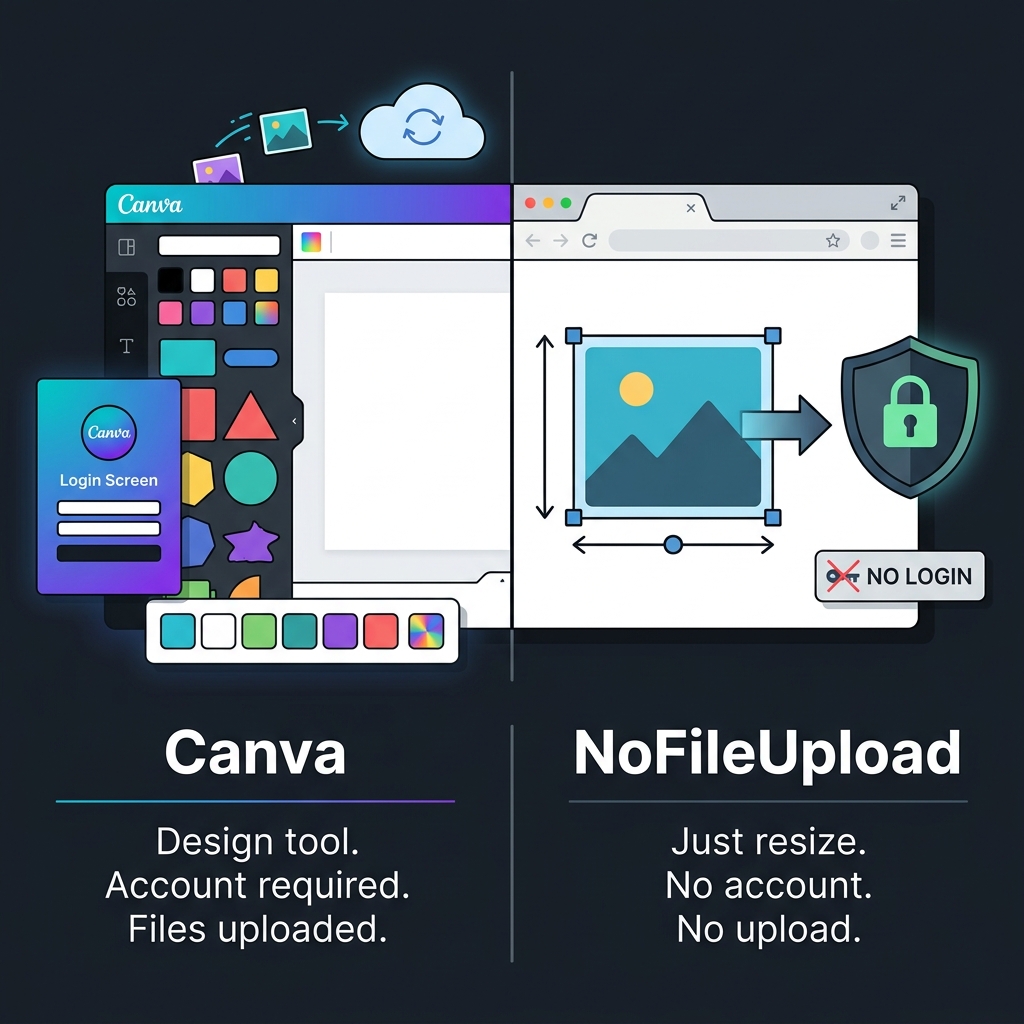
Here's a situation a lot of people have been in. You have a photo — maybe it's too large to attach to an email, or you need it at a specific pixel size for a form or a website — and you need to resize it quickly. You open a new tab, type something like "resize image online," and Canva shows up in the results.
You click through, and suddenly you're staring at a sign-up screen. Then a project setup screen. Then a canvas. Then you have to figure out how to upload your image into the canvas, set the right dimensions, export it in the right format. What should have taken twenty seconds has now taken four minutes, and you've also just handed Canva your email address and uploaded your image to their servers in the process.
This happens constantly, and it's worth being clear about why Canva isn't the right tool for simple image tasks — and what actually is.
What Canva is actually built for
Canva is a design platform. Its core purpose is creating visual content — social media graphics, presentations, flyers, posters, business cards, video thumbnails. It's genuinely excellent at that job. The drag-and-drop interface, the template library, the brand kit, the collaboration tools — all of that is built around the workflow of someone creating something from scratch.
Canva has over 150 million users and an enormous range of templates and design assets. If you regularly make graphics for social media or presentations, Canva Pro is a serious tool worth paying for. There's a reason it's become a default for non-designers who need to produce good-looking content without knowing design software.
But resizing a photo you already have? Compressing an image so it fits in an email? Converting a HEIC file to JPG? That's not what Canva is designed for. It can technically do some of these things — awkwardly — but every step of the workflow is optimised for design creation, not file processing.
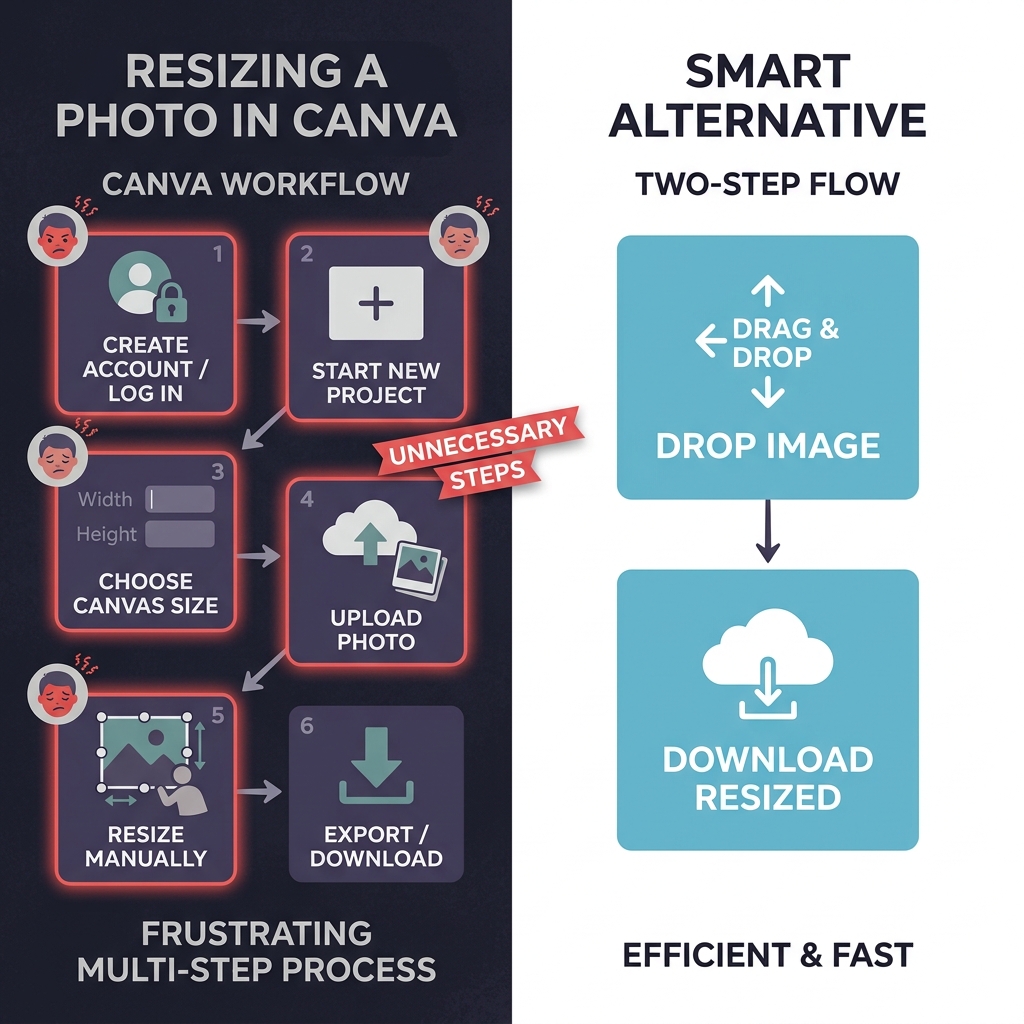
The account and upload problem
Before you can do anything in Canva, you need an account. That's a Google login, a Facebook login, or an email address and password. For a significant portion of people who land on Canva just to resize a single image, creating an account is a blocker they didn't expect.
Once you're in, every image you add gets uploaded to Canva's servers and stored in your media library. That's how the platform works — it's cloud-based, your designs and assets live on their infrastructure, and that's what makes collaboration and multi-device access possible.
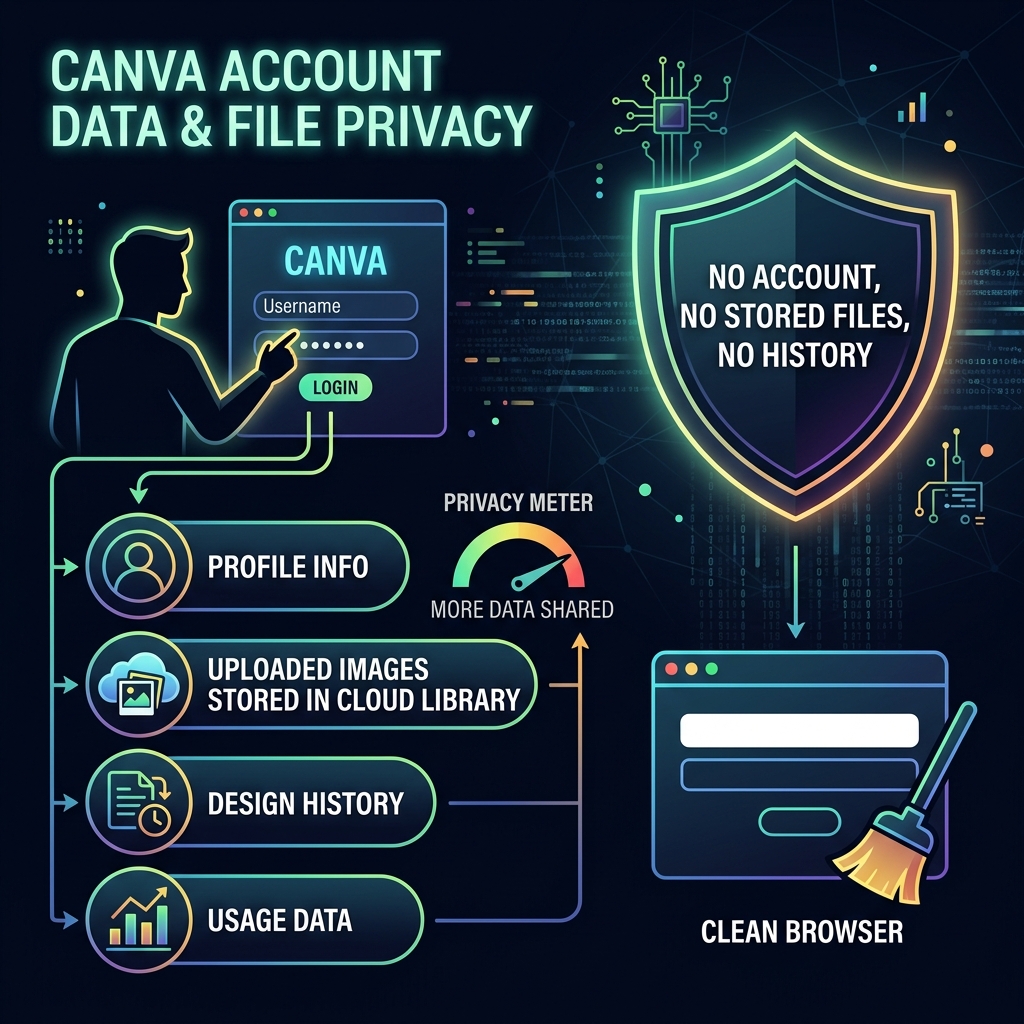
Again — for a design tool used regularly, this is a feature, not a bug. But if you just want to quickly resize a photo of your kid before texting it to grandma, signing up for a cloud design platform and having that photo stored in someone's media library is more than you signed up for.
How NoFileUpload handles the same tasks
NoFileUpload is built for exactly what Canva isn't good at: fast, private file processing with no account and no upload. Drop an image in, choose the output dimensions or compression level, and download the result. From start to finish, it's under a minute for a single image, and no part of that process involves creating an account or sending your file anywhere.
The image resizer supports both pixel dimensions and percentage scaling. The compressor lets you set quality level and see the resulting file size before downloading. The format converter handles HEIC, PNG, JPG, and WebP. The metadata remover strips EXIF data — GPS coordinates, camera info, author names — that might otherwise travel with the image when you share it.
None of this requires signing in. You close the tab and there's nothing stored anywhere. No media library with your photos, no account tied to your email, no design history sitting in a cloud somewhere.
Side-by-side comparison
| Feature | NoFileUpload | Canva |
|---|---|---|
| Account required | ❌ Never | ✅ Yes (mandatory) |
| Files uploaded to server | ❌ Never | ✅ Yes (cloud stored) |
| Image resizing | ✅ Yes — drop and go | ⚠️ Yes — multi-step workflow |
| Image compression | ✅ Yes | ❌ Not directly |
| Format conversion (HEIC, WebP) | ✅ Yes | ⚠️ Limited |
| Remove EXIF / metadata | ✅ Yes | ❌ No |
| Strip GPS from photos | ✅ Yes | ❌ No |
| Bulk image processing | ✅ Yes | ⚠️ Pro only (Magic Resize) |
| PDF metadata tools | ✅ Yes | ❌ No |
| Graphic design / templates | ❌ No | ✅ Yes — this is Canva's strength |
| Brand kits / collaboration | ❌ No | ✅ Yes (paid plans) |
| Video editing | ❌ No | ✅ Yes |
| Works offline | ✅ Yes (after page load) | ❌ No |
| Free to use (no limits) | ✅ Unlimited | ⚠️ Free tier, some features paywalled |
When Canva is the right call
Canva's free tier is genuinely useful for people who need to make social media posts, thumbnails, or simple graphics without learning Photoshop or Illustrator. The template library is massive, the export options are solid, and for the target use case — creating visual content from a starting point — it's hard to beat at the price.
If you already have a Canva account and you're using it daily, the friction of uploading an image to resize it is minimal — it's already part of your workflow. And the paid Magic Resize feature is genuinely handy if you're repurposing the same design across multiple aspect ratios for different platforms.
But if you don't have an account, or you're dealing with a file that shouldn't be going to a cloud service, or you just want to resize something in thirty seconds — Canva is the wrong tool. It's overkill in the worst way: heavier, slower, and more invasive than the job requires.
The tool mismatch problem
What this comparison really comes down to is a tool mismatch that happens a lot online. People search for "resize image" and land on Canva because it's well-known and well-ranked. They use it because it technically works. But they're using a design platform to do a file processing job, and the experience shows it.
There's nothing wrong with Canva — it's a great product for what it does. But for resizing a photo before emailing it, compressing an image before posting it, or stripping location data before sharing it publicly — a purpose-built file tool is faster, simpler, and doesn't need to know your email address.
Frequently asked questions
Does Canva upload your images to their servers?
Yes. When you upload an image to Canva, it's stored in your Canva media library on their cloud servers and stays there until you delete it. Canva is a cloud-based platform, so all files are uploaded and retained in your account.
Can I resize images in Canva without an account?
No. Canva requires an account before you can use any tools, including resizing. NoFileUpload resizes images directly in your browser without any account or file upload.
What is a good Canva alternative just for resizing images?
NoFileUpload handles image resizing, compression, format conversion, and metadata removal — all in your browser, with no account required and nothing uploaded to any server.
Is Canva free to use for image resizing?
Canva has a free tier, but it requires an account and uploads your files. The bulk Magic Resize feature requires Canva Pro. NoFileUpload is completely free with no account and no file upload for all resizing tasks.
Image Resizer
Resize images to any pixel dimensions. Lock aspect ratio, choose fit/fill/stretch mode, and download in JPEG, PNG, or WebP.