NoFileUpload vs iLoveIMG: Same Job, Very Different Privacy Story
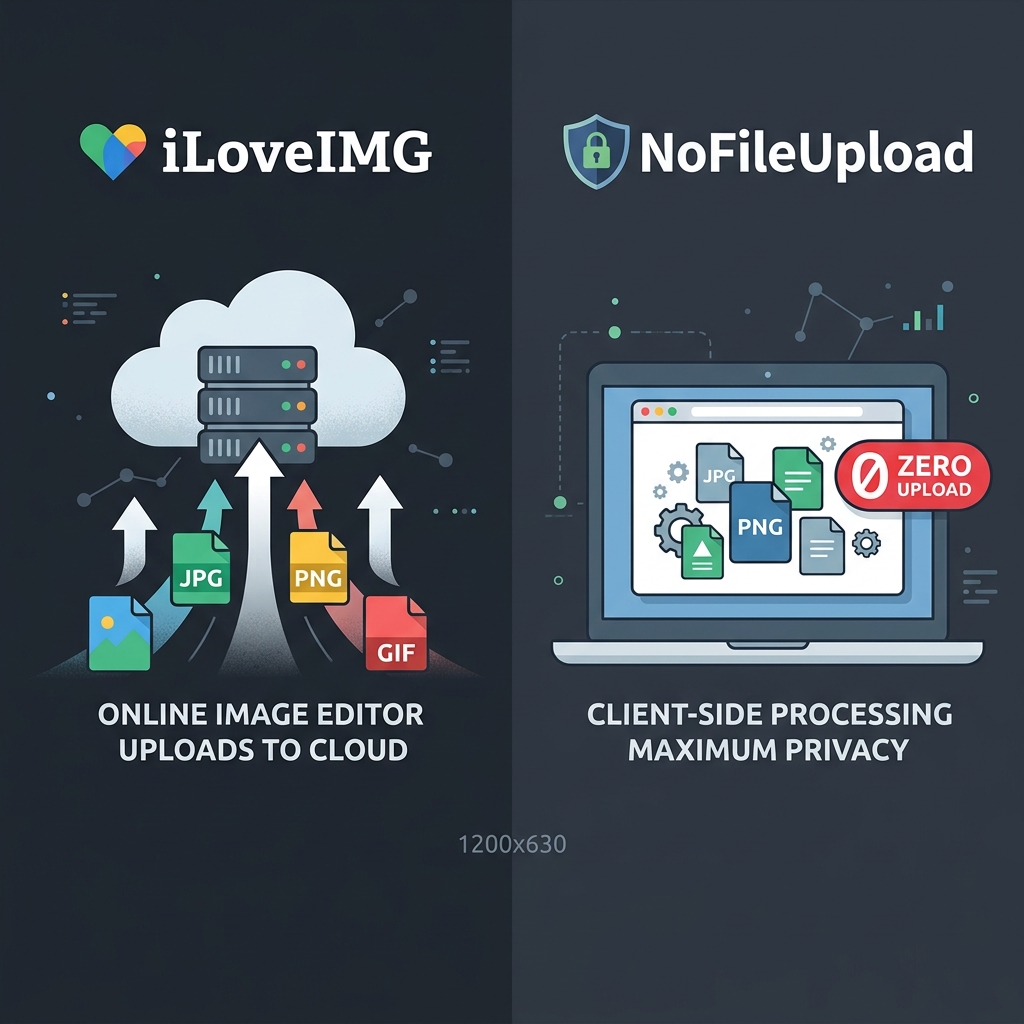
iLoveIMG has done a good job of becoming the go-to destination for quick image jobs online. Need to compress a batch of photos? iLoveIMG. Resize something for a website? iLoveIMG. Convert a PNG to JPG? iLoveIMG. It's built a solid reputation as a one-stop shop for basic image processing, and if you've worked with images online at all, you've probably landed there at some point.
So this comparison isn't about dismissing iLoveIMG — it's about being clear on what actually happens when you use it, versus what happens when you use NoFileUpload for the same tasks. Because on the surface they look very similar. Underneath, the architecture is completely different. And for some people and some use cases, that difference matters quite a bit.
How iLoveIMG actually works
iLoveIMG is a server-side tool. Every feature they offer — compress, resize, crop, rotate, convert, add watermarks — works by uploading your image to their servers, running the operation there, and giving you the result as a download. The user interface is in your browser, but the processing happens on their infrastructure.
This is a completely standard approach for web tools and it works fine. The reason it works so reliably is that server-side processing isn't limited by your device — it can handle large files, complex operations, and multiple files quickly regardless of what laptop or phone you're using.
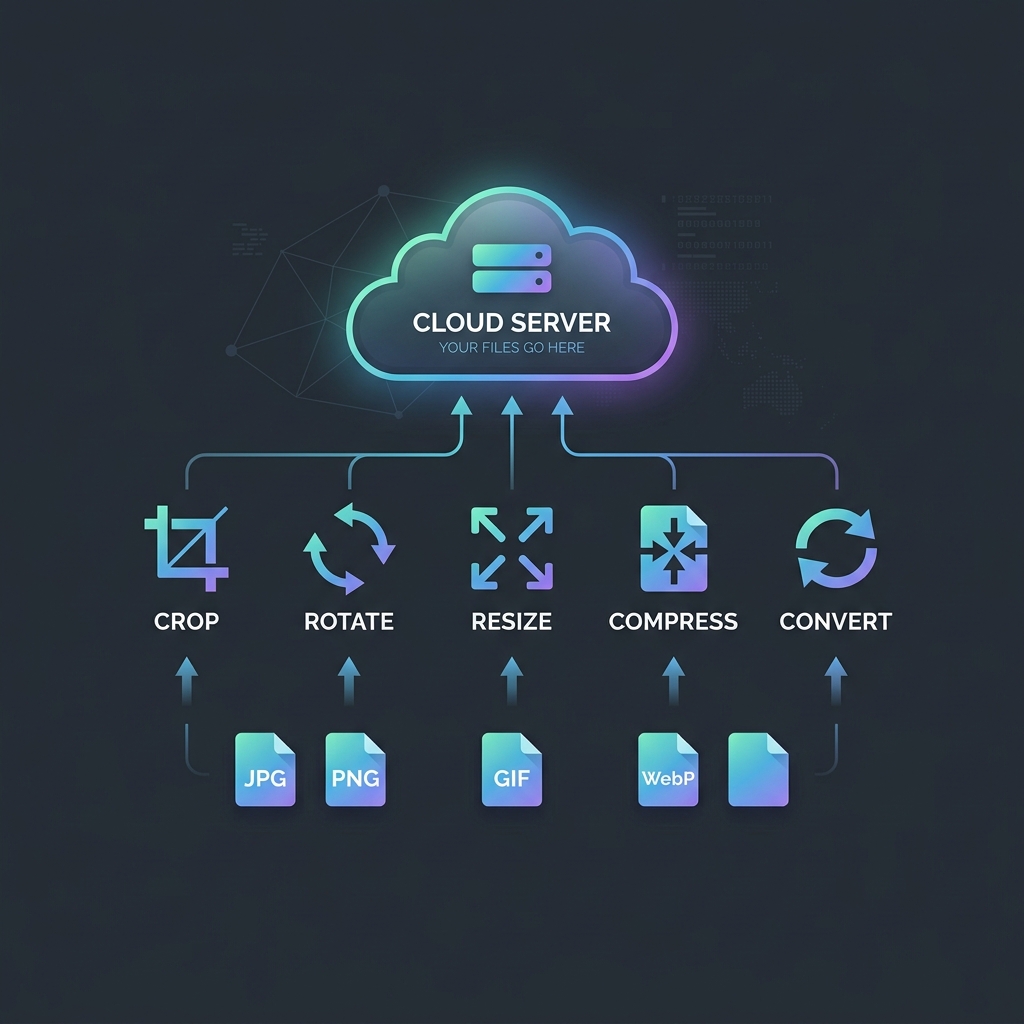
The practical downside shows up in two places: privacy, and limits. On privacy — your files go somewhere you don't control. On limits — iLoveIMG caps free usage. Files over a certain size, or too many in one session, push you toward their paid plans. Uploading is also slower than local processing, especially on mobile connections.
How NoFileUpload handles the same tasks
NoFileUpload covers the same category of tools — image compression, resizing, format conversion, HEIC support, metadata viewing and removal — but runs all of it in your browser using JavaScript and WebAssembly. When you drop a file in, it gets processed locally. The output is generated locally. Your file never touches a server.
This isn't some workaround or a stripped-down version of what you get with a server-side tool. Browser-based compression and resizing using modern WebAssembly libraries can match server-side results closely in terms of quality and output file size. For most everyday image jobs, you'd be hard pressed to spot a difference in the final result.
The added benefit is that there are no usage limits. There's no file size cap, no monthly quota, no account required. You can process fifty images in a row and nothing breaks, nothing gets throttled.
Bulk processing: where the gap shows up clearly
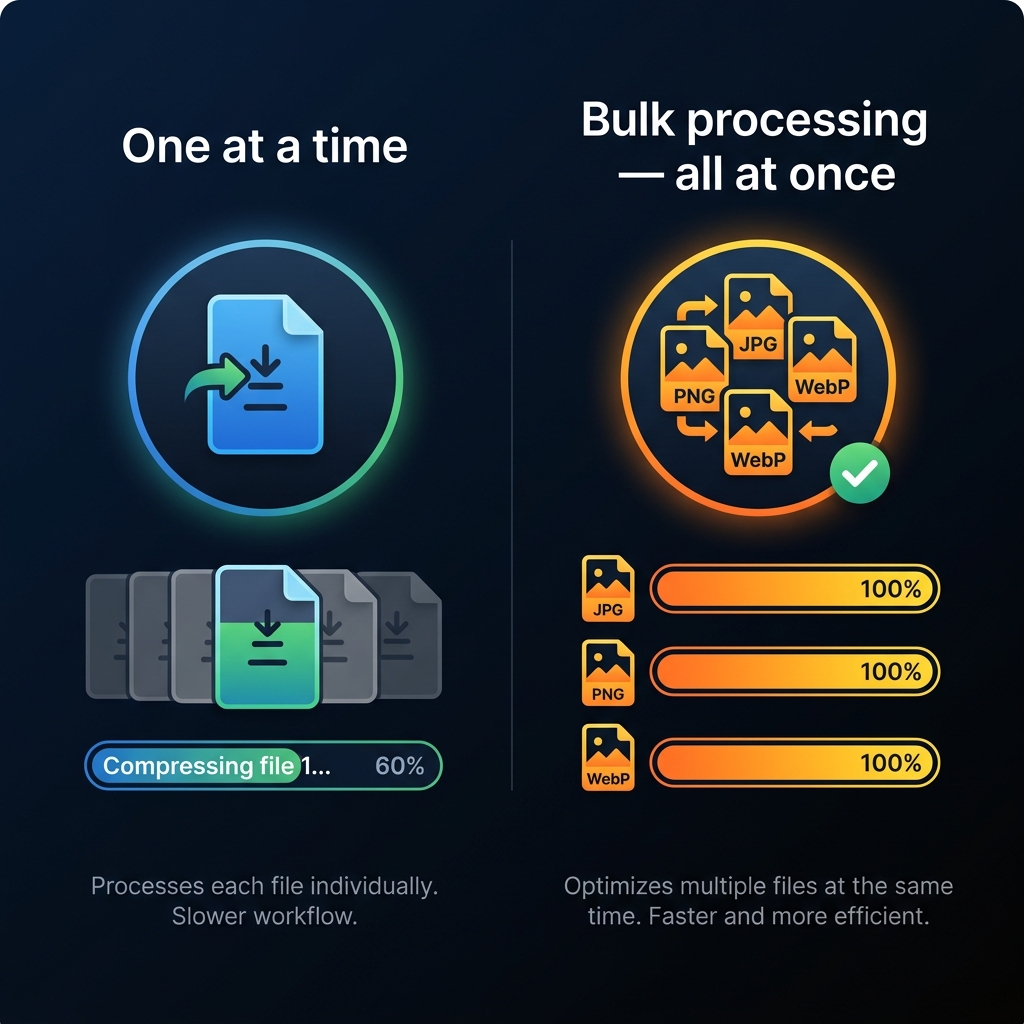
One of the most practical differences is how batch processing works. iLoveIMG does support processing multiple files at once, but on free accounts this comes with restrictions — file count limits, size limits, slower processing as your files wait in an upload queue.
With NoFileUpload, bulk processing is entirely local. You can drop in a folder of images and the browser handles them all simultaneously on your device. There's no upload wait, no queue, no server round-trip for each file. On a decent computer, processing 20 or 30 images locally is genuinely faster than uploading them to a server, waiting for processing, and downloading them back.
Side-by-side comparison
| Feature | NoFileUpload | iLoveIMG |
|---|---|---|
| Files sent to server | ❌ Never | ✅ Yes (all tools) |
| Works offline | ✅ Yes | ❌ No |
| Free usage limits | ✅ Unlimited | ⚠️ File size & count caps |
| Account required | ❌ Never | ❌ No (free tier) |
| Image compression | ✅ Yes | ✅ Yes |
| Image resizing | ✅ Yes | ✅ Yes |
| Format conversion | ✅ Yes | ✅ Yes |
| HEIC to JPG | ✅ Yes | ✅ Yes |
| Bulk processing | ✅ Yes (no limits) | ⚠️ Limited on free |
| Remove EXIF / metadata | ✅ Yes | ❌ No |
| GPS / location stripping | ✅ Yes | ❌ No |
| PDF metadata tools | ✅ Yes | ❌ No |
| Audio metadata tools | ✅ Yes | ❌ No |
| Crop / rotate images | ✅ Yes | ✅ Yes |
The metadata angle — something iLoveIMG doesn't handle at all
Here's a gap that catches people off guard. When you resize or compress a photo with iLoveIMG, the EXIF metadata that was in that photo — including GPS coordinates, device info, timestamps — often survives the operation. The file gets smaller or resized, but the metadata stays in.
iLoveIMG doesn't have a metadata removal tool. You can't use it to strip the GPS location from a photo before you share it.
NoFileUpload handles metadata removal as a core feature. You can view what's in a file, strip all of it, remove just the GPS data, or export it — all locally, all without uploading anything. If you're doing image prep before sharing photos online, that's often the most important step in the whole workflow, not just the compression.
When iLoveIMG is the better pick
To be fair: iLoveIMG has some capabilities that lean on server-side processing specifically. Their watermarking tool, for instance, and their ability to handle very large files even on low-powered devices work because the heavy lifting happens on their end. If you're editing a 50MB RAW file on a five-year-old phone, a server-side tool might actually perform better.
iLoveIMG also supports animated GIFs more thoroughly than most browser-based tools, and they handle certain edge-case format conversions that require server-side encoders. If you work with GIFs regularly or have very specific format conversion needs, that's worth knowing.
Which one should you actually use?
If you're handling images for personal use — photos from your phone, pictures you're about to post, files with location data — NoFileUpload is the better tool. Your files stay on your device, there's no upload, and you get the metadata tools that iLoveIMG doesn't have.
If you need server-side features specifically — handling very large files on a slow device, animated GIF editing, or certain niche format conversions — iLoveIMG is a reasonable choice. Just go in knowing that your files are making a trip to their servers.
For the vast majority of image jobs that most people actually do — compress before emailing, resize for a website, convert HEIC from iPhone — NoFileUpload handles all of it locally, with no limits, no account, and nothing uploaded.
Frequently asked questions
Does iLoveIMG upload images to a server?
Yes. Every iLoveIMG tool — compress, resize, crop, convert — works by uploading your file to their servers, processing it there, and returning the result. You can verify this by watching the Network tab in your browser's developer tools while using the site.
What is a good iLoveIMG alternative that doesn't upload files?
NoFileUpload is a direct alternative that handles image compression, resizing, format conversion, HEIC support, and metadata removal — all processed locally in your browser without any server upload.
Can iLoveIMG compress images for free?
iLoveIMG offers free compression but with file size and usage limits on their free tier. NoFileUpload is fully free with no file size caps, no monthly limits, and no account required.
Does iLoveIMG support bulk image processing?
iLoveIMG supports batch processing with limitations on free accounts. NoFileUpload also handles bulk processing locally without any upload, with no count or size restrictions.
Image Compressor
Compress JPEG, PNG, and WebP images with a quality slider. Reduce file size instantly — no uploads, no quality guessing.