NoFileUpload vs ImageOptim: Do You Still Need a Desktop App to Compress Photos?
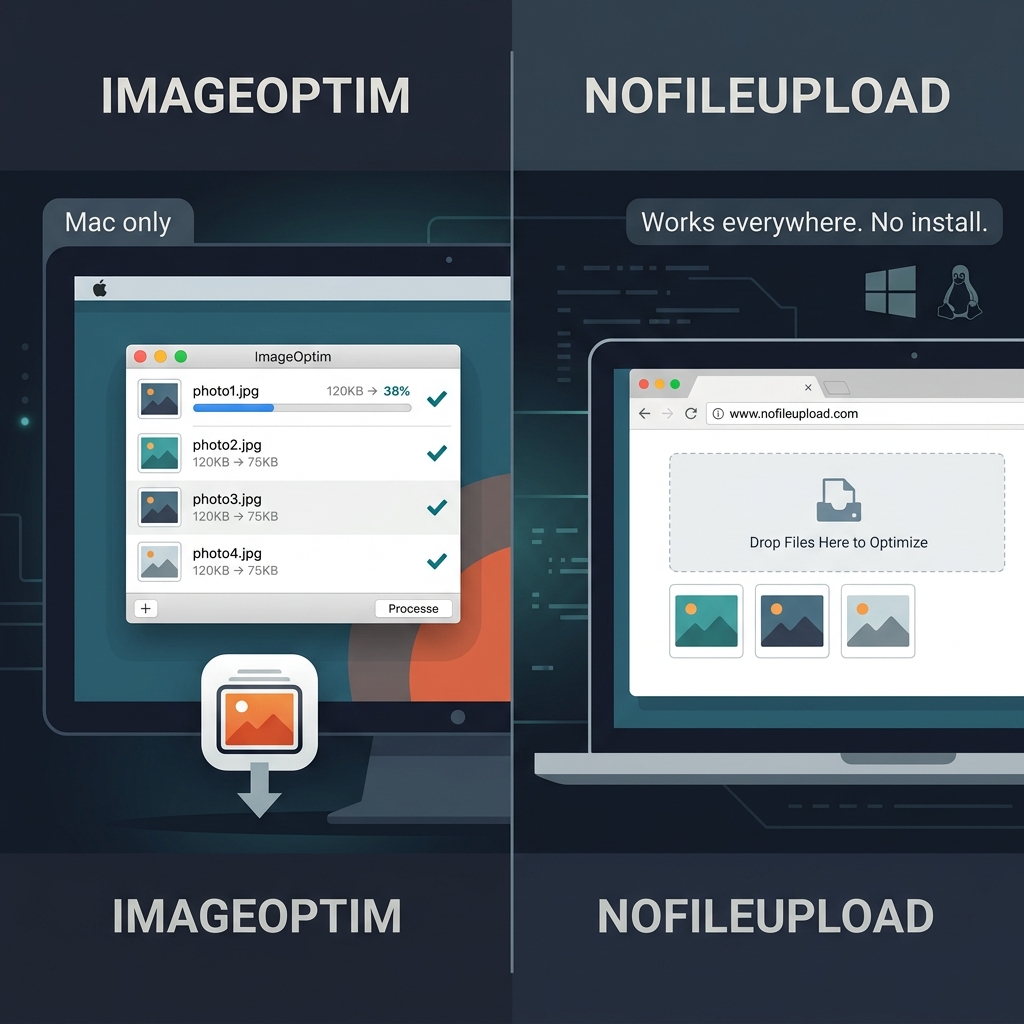
ImageOptim has been around since 2007, and if you've been a Mac user who cares about image file sizes, you've probably used it at some point. It's free, it's fast, it's open source, and it achieves genuinely excellent lossless compression by running multiple optimisation tools — MozJPEG, pngquant, Zopfli, Guetzli — on each image and taking the best result. For developers optimising assets and photographers prepping files for the web, it's been a trusted part of the toolkit for nearly two decades.
The problem is simple: it only runs on Mac.
If you're on Windows, Linux, or a Chromebook — or you're working on a machine that isn't yours and you can't install software — ImageOptim isn't an option. This page is for the people who've searched for an ImageOptim alternative and want to understand what's actually comparable.
What makes ImageOptim good
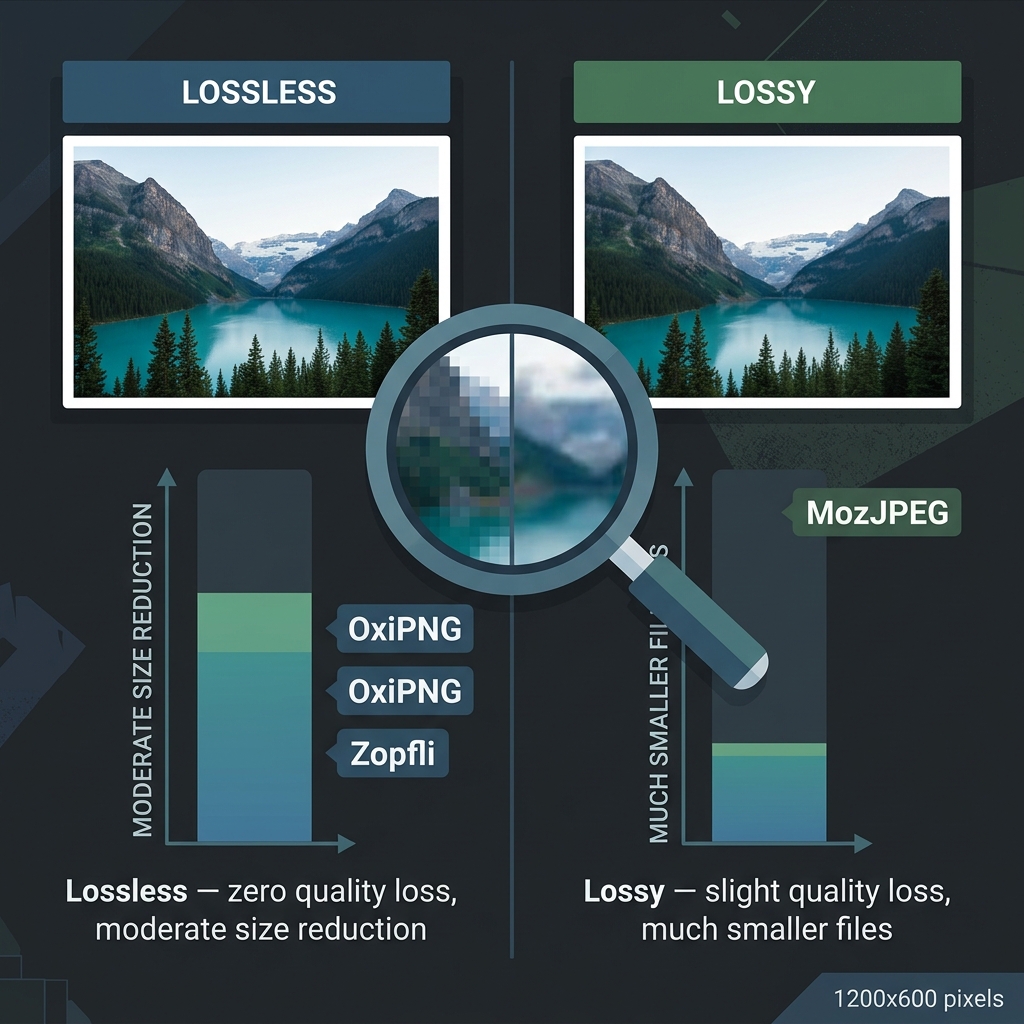
It's worth being direct about this: ImageOptim is excellent at what it does. The way it works is smart — it runs several compression libraries on the same image, compares the results, and keeps whichever version is smallest. By default it's lossless, meaning you get smaller files with no visible quality degradation. You can drag an entire folder in, and it processes everything automatically.
The lossless-by-default approach is something a lot of people specifically want. You get smaller files, and you don't have to make any trade-off decisions about quality. For a photo library or a folder of web assets, that's a huge time saver.
ImageOptim also strips metadata by default — it removes EXIF data, colour profiles, and comments from files as part of the optimisation process. That's a genuinely useful default that a lot of people don't realise they're getting. A photo optimised with ImageOptim typically has its GPS data and camera info removed alongside the size reduction.
The platform wall
ImageOptim is a Mac app — specifically, it requires macOS 10.9 or later. There's no Windows version, no Linux version, no web version. The developer has noted this is a deliberate choice; the Mac ecosystem gives it access to certain system libraries that make the implementation cleaner.
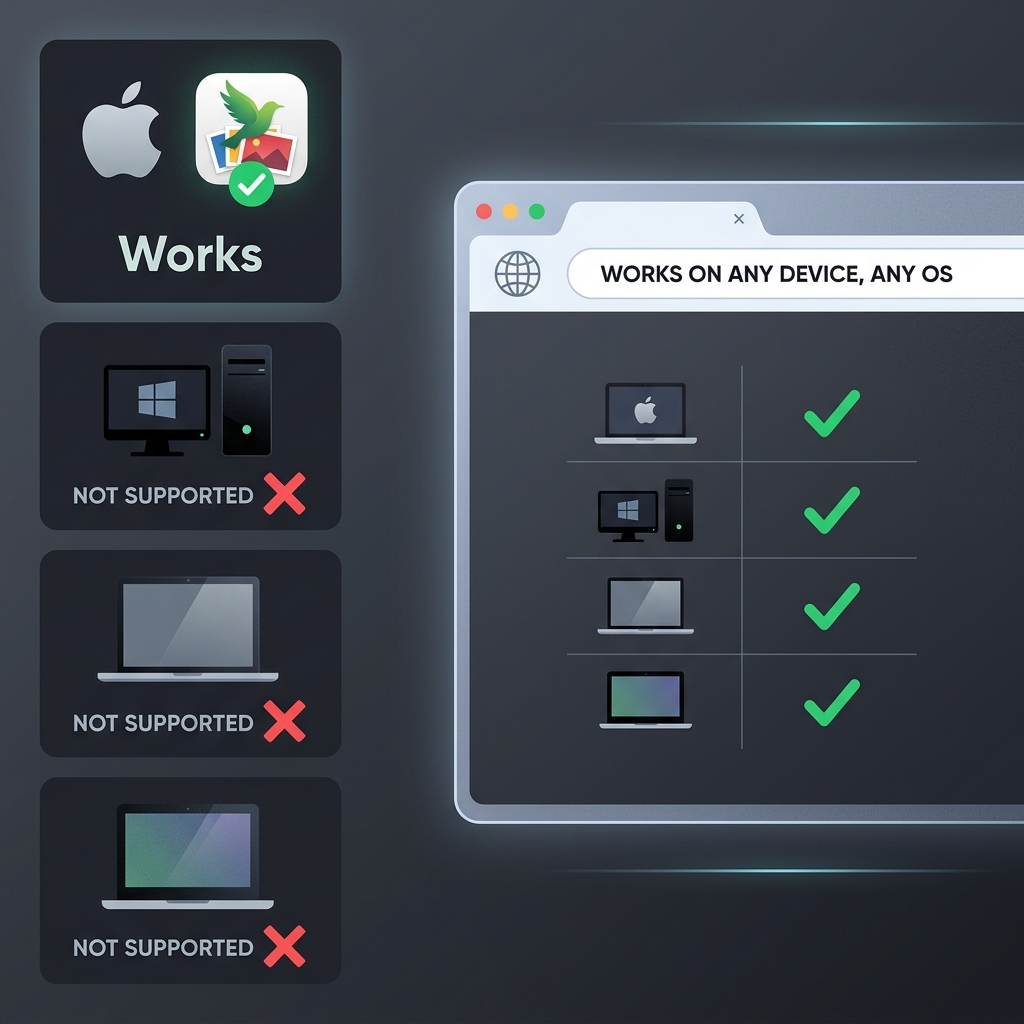
This matters because a significant portion of people searching for ImageOptim are doing so precisely because they're not on a Mac and are looking for something equivalent. If you're a Windows user whose Mac-using colleague recommended ImageOptim, you're looking for a different tool entirely.
How NoFileUpload compares
NoFileUpload is browser-based, which means it runs on any device with a modern browser — Windows, Mac, Linux, Chromebook, iPad, or a borrowed laptop you can't install software on. There's nothing to download or install. Open the tab, drop the image, done.
Like ImageOptim, NoFileUpload processes images locally. Nothing goes to a server. The compression happens in your browser using JavaScript and WebAssembly, and the result is handed back to you as a download. Privacy-wise, both tools are equivalent: your files stay on your device.
The compression quality is genuinely close for most everyday use cases. For JPEGs, NoFileUpload uses MozJPEG-quality compression. For PNGs, OxiPNG. You won't hit the exact byte-level optimisation that ImageOptim achieves by running multiple tools and picking the smallest — for truly maximum lossless compression of web assets where every kilobyte counts, a desktop tool like ImageOptim still has an edge on Mac. But for compressing photos before sharing or emailing, the difference in the resulting file size is usually negligible.
Where NoFileUpload goes further than ImageOptim: format conversion, HEIC support, image resizing, and PDF and audio metadata tools. ImageOptim is purely a compression tool; it doesn't convert formats, resize images, or handle anything outside of its specific compression task. If your workflow needs more than compression, NoFileUpload covers it.
Side-by-side comparison
| Feature | NoFileUpload | ImageOptim |
|---|---|---|
| Platforms supported | ✅ Any OS (browser) | ⚠️ Mac only |
| Installation required | ❌ No install needed | ✅ Must install app |
| Files uploaded to server | ❌ Never | ❌ Never (local app) |
| Lossless compression | ✅ Yes | ✅ Yes (default) |
| Lossy compression | ✅ Yes (adjustable) | ✅ Yes (opt-in) |
| Strips EXIF metadata | ✅ Yes (separate tool) | ✅ Yes (automatic) |
| GPS location stripping | ✅ Yes | ✅ Yes (automatic) |
| Bulk / folder processing | ✅ Yes | ✅ Yes (drag folder) |
| HEIC to JPG conversion | ✅ Yes | ❌ No |
| Image resizing | ✅ Yes | ❌ No |
| Format conversion | ✅ Yes | ❌ No |
| PDF metadata tools | ✅ Yes | ❌ No |
| Audio metadata tools | ✅ Yes | ❌ No |
| Maximum compression quality | Very good | ✅ Excellent (best-of-tools) |
| Free to use | ✅ Yes | ✅ Yes (open source) |
Who should use which tool
Use ImageOptim if: you're on a Mac, you want the absolute maximum lossless compression quality, you're optimising images for production websites where every byte matters, and you want a drag-and-drop desktop app that processes files without any browser involved. It's excellent and free, and if you're on Mac it's hard to beat for pure compression quality.
Use NoFileUpload if: you're on Windows, Linux, a Chromebook, or any device where installing a Mac app isn't an option. Also use it if you need more than just compression — HEIC conversion, format switching, image resizing, or metadata tools that ImageOptim doesn't cover. And if you're on a shared or borrowed computer where installing software isn't appropriate, the browser-based approach sidesteps that entirely.
Both tools are genuinely private — neither sends your files anywhere. If you happen to be on Mac and only need compression, ImageOptim might squeeze out a few extra percentage points. For everything else and everywhere else, NoFileUpload is the practical answer.
Frequently asked questions
Is there a Windows version of ImageOptim?
No. ImageOptim is Mac-only with no official Windows or Linux release. Windows users can use NoFileUpload, which works in any browser on any operating system with no installation.
Does ImageOptim upload images to a server?
No. ImageOptim is a local desktop app — all compression runs on your Mac. NoFileUpload also processes images locally, but does it in the browser rather than requiring a desktop install.
What is the best ImageOptim alternative for Windows?
NoFileUpload is one of the closest ImageOptim alternatives for Windows. It compresses images locally in the browser without uploading them, handles EXIF removal, and also covers HEIC conversion and image resizing that ImageOptim doesn't.
Is ImageOptim lossless?
Yes, by default. ImageOptim applies lossless compression — reducing file size without visible quality loss. You can enable lossy compression (pngquant, Guetzli) in settings for greater reductions at the cost of some quality.
Image Compressor
Compress JPEG, PNG, and WebP images with a quality slider. Reduce file size instantly — no uploads, no quality guessing.