NoFileUpload vs JPEG Optimizer: Compress Multiple Images at Once, Privately
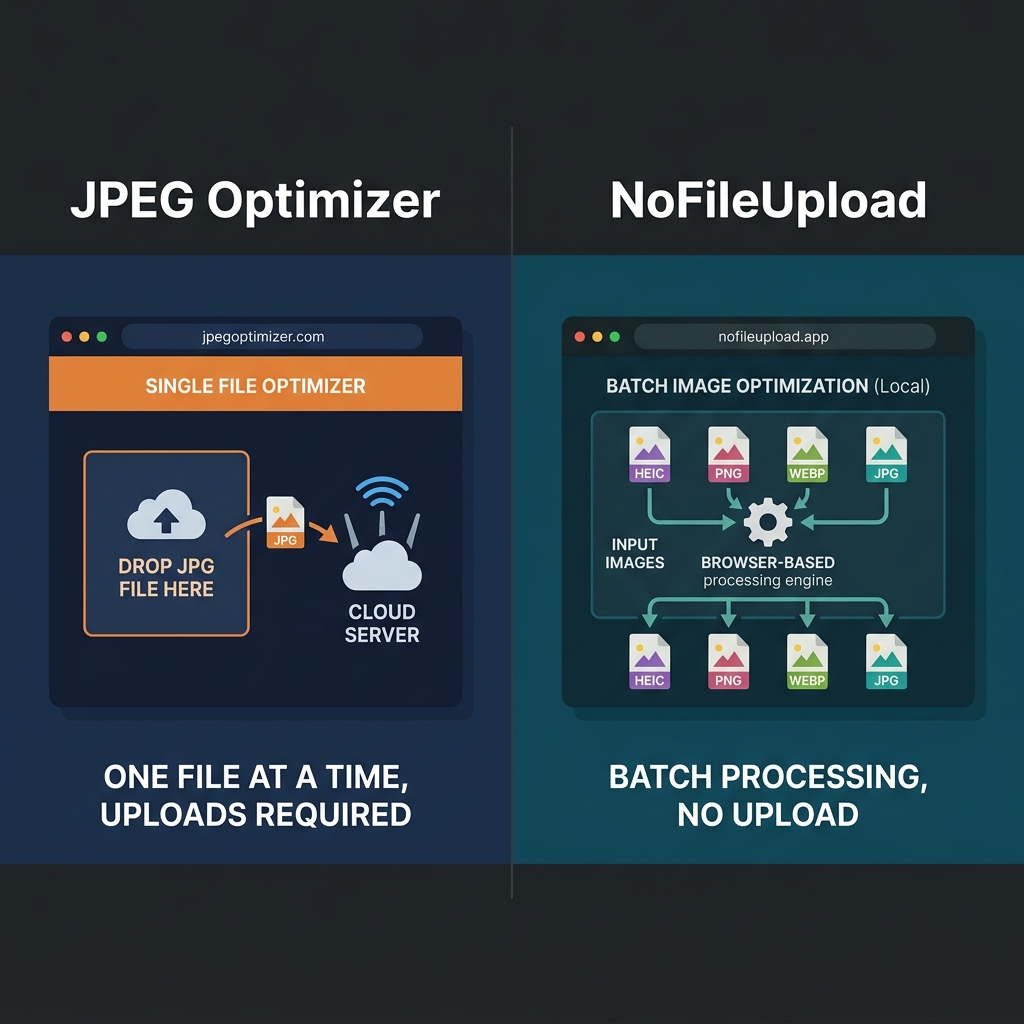
JPEG Optimizer (jpegoptimizer.com) is one of those tools that's been around so long it has a permanent presence in "best image compressor" articles from 2015 that Google still serves in 2026. For compressing a single JPEG quickly, it works. You upload a file, choose a quality level, it comes back smaller.
The friction starts when you have more than one image. JPEG Optimizer processes files one at a time. If you have ten photos to compress before emailing them, you're repeating the same upload-wait-download cycle ten times. For anyone who compresses images regularly, that's a meaningful waste of time.
There's also the question of where the processing happens. JPEG Optimizer sends your image to their server, compresses it there, and returns the result. For most images this is fine — but it's worth knowing that your files are leaving your device, especially when there are alternatives that compress locally.
The batch problem
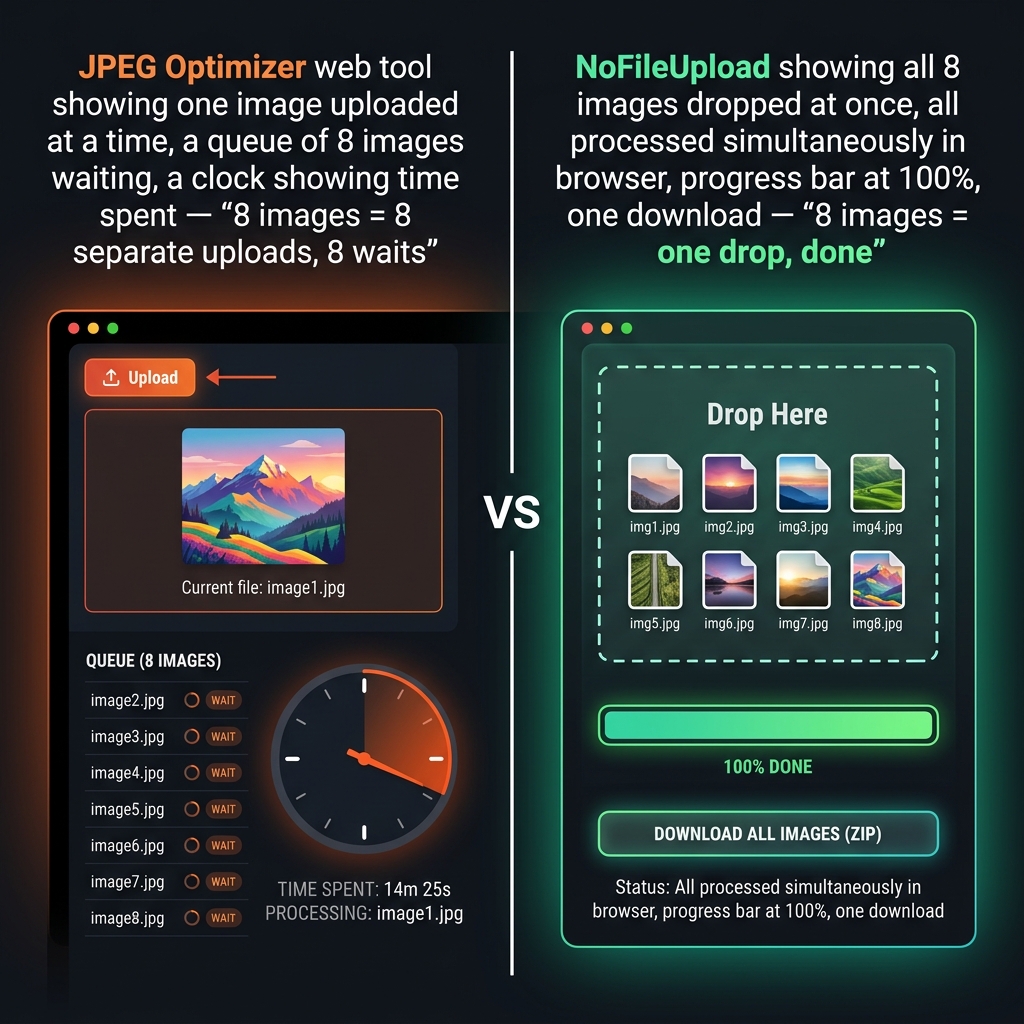
The one-at-a-time limitation isn't just a minor inconvenience. For real workflows — a photographer delivering a gallery, a content creator preparing images for a blog post, a developer optimising assets before deployment — repeating the same manual step for every file adds up quickly. Ten images at two minutes per image is twenty minutes of repetitive clicking. The same ten images in a batch tool with NoFileUpload is thirty seconds.
NoFileUpload's image compressor accepts multiple files at once. Drop the whole folder in, all files process simultaneously in the browser, download individually or as a zip. The quality setting applies to all files at once, or you can adjust per-file if needed.
Understanding JPEG quality settings
Both tools give you control over quality — this is worth understanding before you set it and forget it. JPEG compression is lossy, meaning some image data is discarded to achieve smaller file sizes. The question is how much.
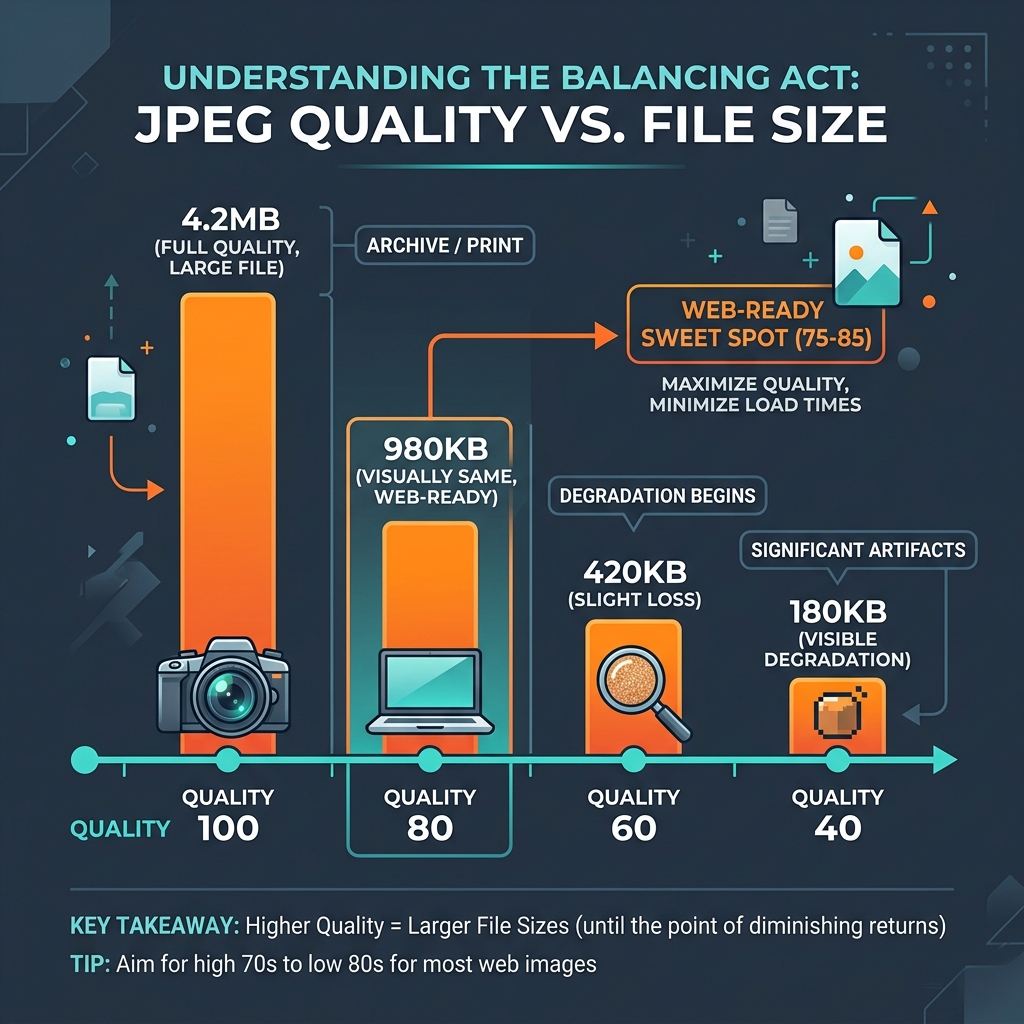
For web images, quality 75–85 is the standard recommendation. At quality 80, a 4MB camera photo typically compresses to under 1MB with no visible difference to the human eye. Below quality 60, compression artifacts start to become noticeable — blocky areas, smeared detail in fine textures, and colour banding. Below quality 40, the image visibly degrades.
Most people leaving quality at 100 out of caution are missing most of the benefit of compression. Quality 80 is almost always the right starting point for sharing images online or attaching them to emails.
Format support
JPEG Optimizer, as the name implies, is primarily built around JPEG files. NoFileUpload's image compressor handles JPEG, PNG, WebP, and HEIC — the full range of formats you encounter when pulling images from an iPhone (HEIC), a website (WebP), or a design tool (PNG). If your workflow involves mixed format batches, the tool choice matters.
Side-by-side comparison
| Feature | NoFileUpload | JPEG Optimizer |
|---|---|---|
| Files sent to server | ❌ Never | ✅ Yes (server processed) |
| Batch / multiple files | ✅ Yes — unlimited | ❌ One file at a time |
| JPEG compression | ✅ Yes | ✅ Yes — core feature |
| PNG compression | ✅ Yes | ⚠️ Limited |
| WebP support | ✅ Yes | ❌ No |
| HEIC support | ✅ Yes | ❌ No |
| Quality slider | ✅ Yes | ✅ Yes |
| Works offline (after load) | ✅ Yes | ❌ No |
| Download as ZIP | ✅ Yes (batch) | ❌ No |
| EXIF metadata removal | ✅ Yes (separate tool) | ❌ No |
| Image resizing | ✅ Yes | ❌ No |
| HEIC to JPG conversion | ✅ Yes | ❌ No |
| Free to use | ✅ Fully free | ✅ Free |
| Account required | ❌ Never | ❌ No |
Who each tool is for
JPEG Optimizer is a fine choice if you have one JPEG to compress and you don't mind the upload. It's simple and has been around long enough that it shows up in search results reliably. For a one-off task on a non-sensitive image, it does the job.
NoFileUpload is the better choice for anything involving more than one image, any format other than JPEG, any concern about file privacy, or any need to do additional processing (resizing, metadata removal, format conversion) after compression. The browser-based approach also means it works offline after the initial load, and identically across every device and OS.
Frequently asked questions
Does JPEG Optimizer upload images to a server?
Yes. JPEG Optimizer processes images on their servers — your image is uploaded, compressed server-side, and returned. NoFileUpload compresses images entirely in your browser using JavaScript, so nothing is ever uploaded.
Can JPEG Optimizer compress multiple images at once?
No. JPEG Optimizer processes one image at a time. NoFileUpload accepts multiple files at once and processes them all simultaneously in your browser.
What quality setting should I use for JPEG compression?
Quality 75–85 is the standard web sweet spot — visually identical to the original but 60–80% smaller file size. Below quality 60, compression artifacts become visible. NoFileUpload lets you choose quality with a live preview.
Is there a free JPEG Optimizer alternative that works offline?
NoFileUpload works offline after the initial page load since compression happens in your browser. It's free, handles batch files, and works on any device with a modern browser.
Image Compressor
Compress JPEG, PNG, and WebP images with a quality slider. Reduce file size instantly — no uploads, no quality guessing.