NoFileUpload vs Photopea: You Don't Need a Full Editor to Compress a Photo
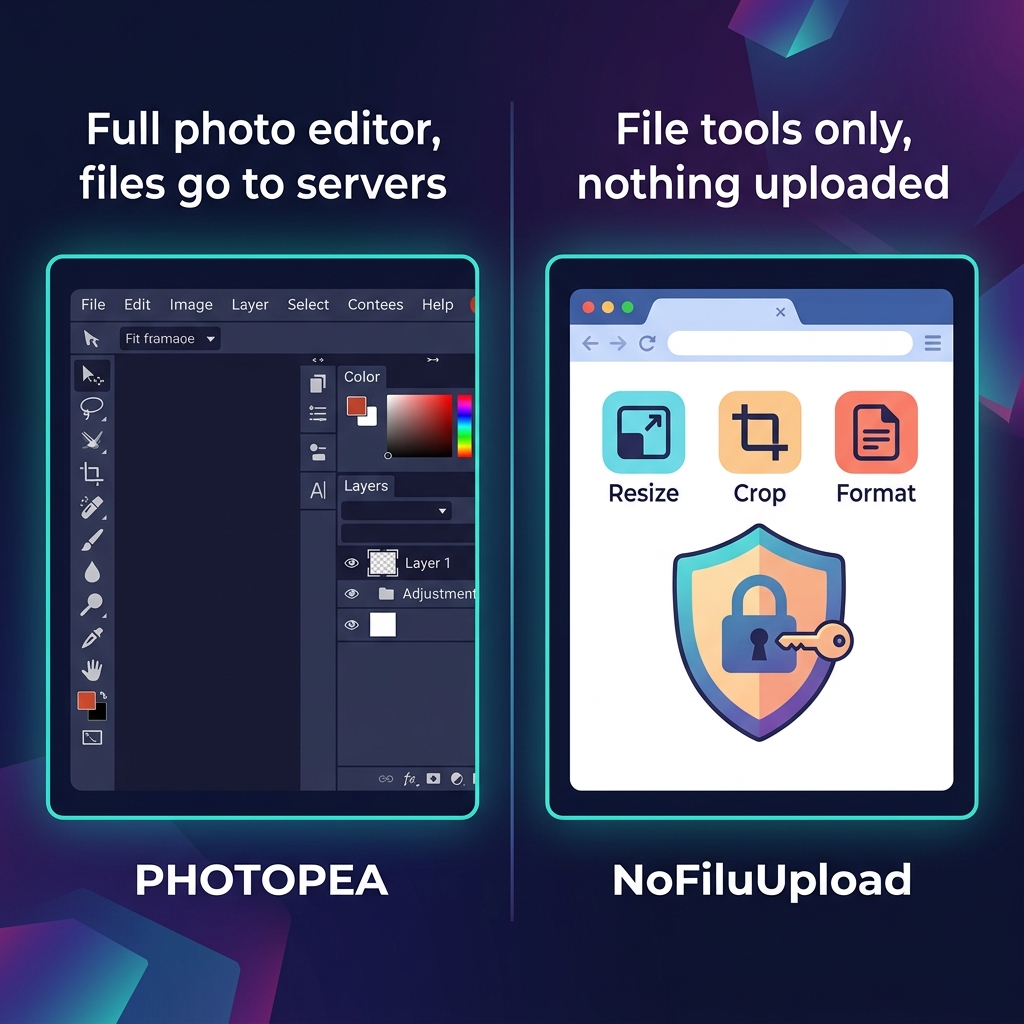
Photopea deserves its reputation. It's a genuinely impressive piece of engineering — a full Photoshop-compatible editor that runs in a browser, for free. It opens PSD files, supports layers, masks, adjustments, and most of the tools you'd find in a paid desktop application. For anyone who needs Photoshop capabilities without paying for Adobe Creative Cloud, it's hard to beat.
The problem is when people use it for tasks it wasn't designed for. A significant number of people open Photopea specifically to do one of three things: compress a photo to send via email, resize an image to specific pixel dimensions, or strip EXIF metadata before posting on social media. For all three of those tasks, Photopea is like using a chainsaw to slice bread. It technically works, but there's a much better tool for the job.
What Photopea is actually built for
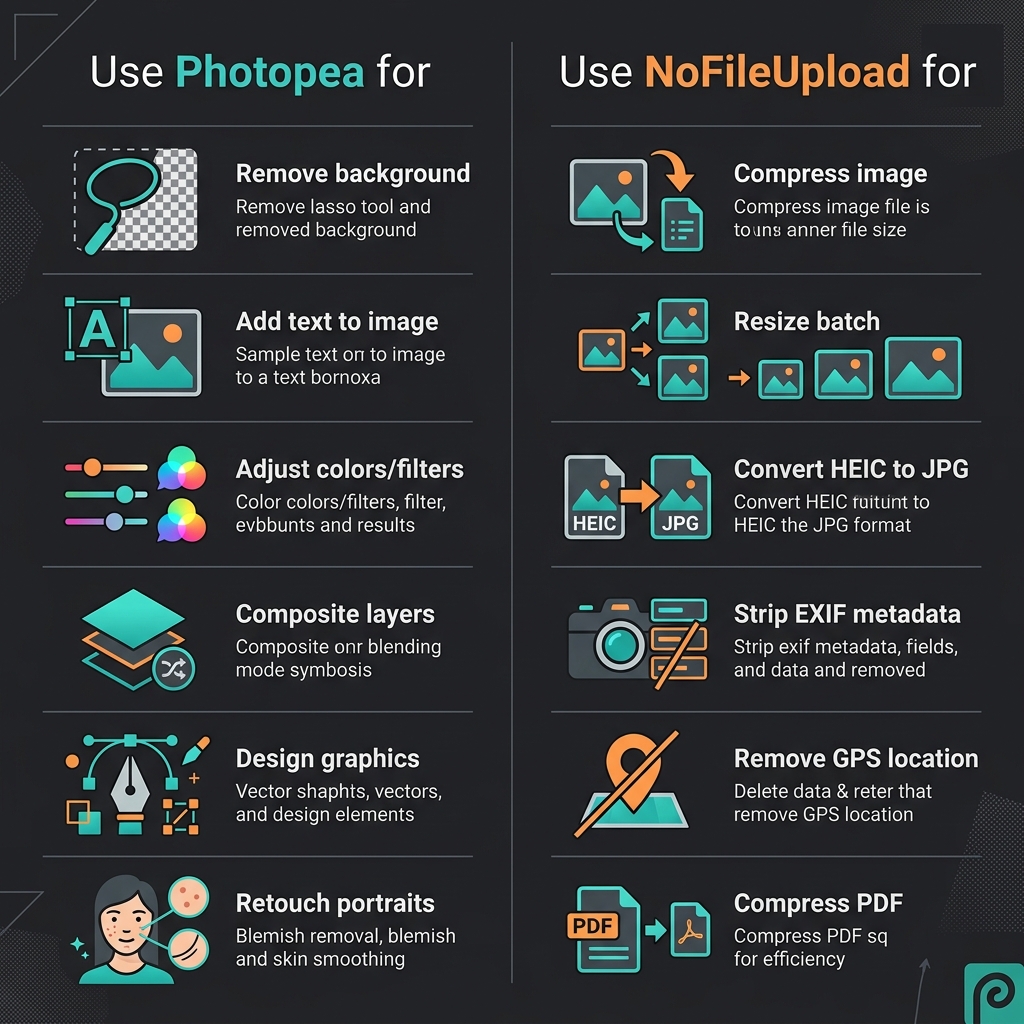
Photopea is an image editor. Its core strengths are everything that involves manipulating pixel content: adjusting colors and exposure, removing backgrounds, compositing multiple images, adding text and graphics, retouching portraits, working with layers and masks, and handling complex file formats like PSD, XCF, and Sketch. If you're doing any of those things, Photopea is excellent — and free.
It also processes images locally in the browser for the actual editing work, which is worth knowing. Your image data doesn't travel to Photopea's servers when you edit a file. The JavaScript processing engine runs in your tab. That said, it loads substantial advertising infrastructure and analytics, and using cloud save or share features does involve their servers.
The mismatch problem
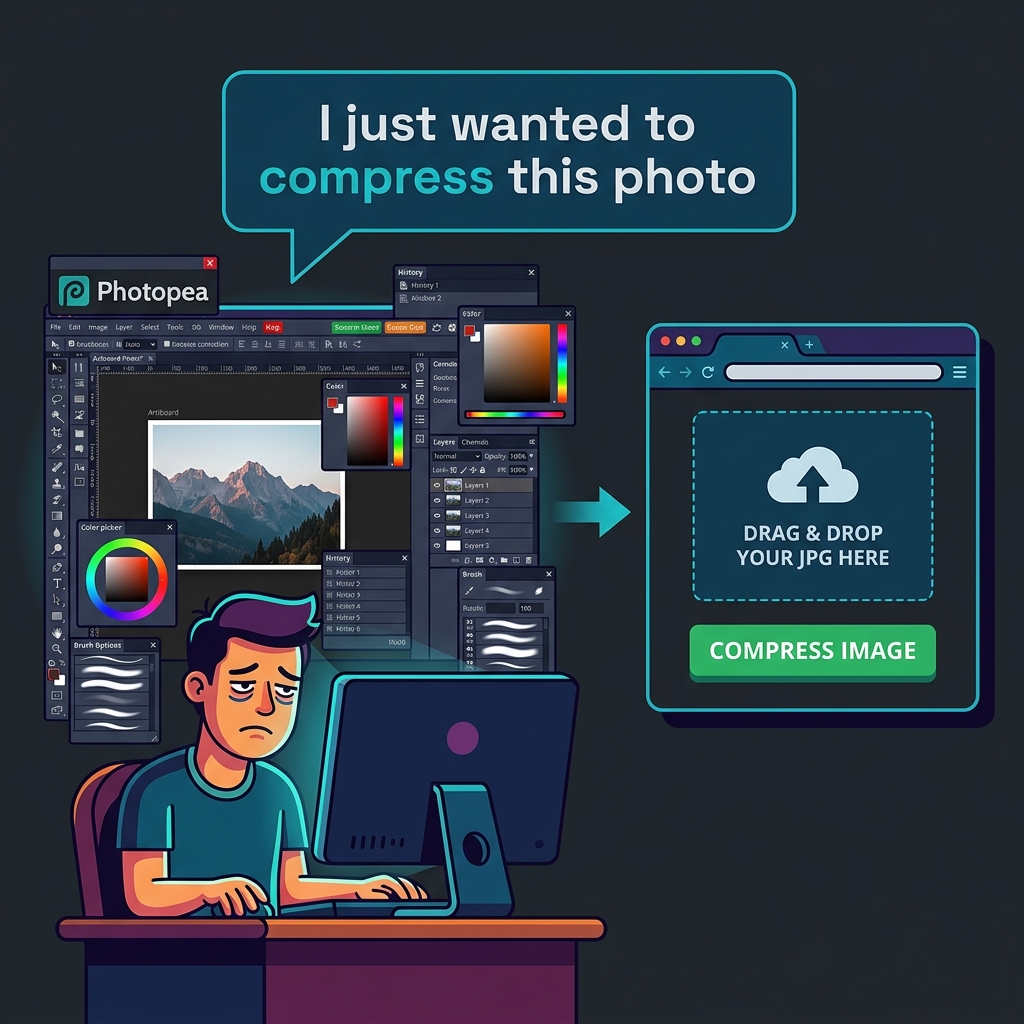
If you want to compress a photo in Photopea, the process goes: open the file → wait for the editor to load → go to File → Export As → choose format → adjust the quality slider → confirm → download. That's six or seven steps through an interface designed for complex creative work, just to reduce a file size.
Resizing to specific dimensions in Photopea: Image → Image Size → change width/height → OK → then export. Again, more steps than necessary for what is fundamentally a simple operation. And stripping EXIF metadata? Photopea doesn't do that at all — it preserves metadata on export.
NoFileUpload is the opposite approach. Every tool is a single focused interface: drop files, get result, download. The image compressor does one thing. The image resizer does one thing. The metadata remover does one thing. There's no editor, no layers panel, no toolbox to navigate. If you know what output you want, you're done in under a minute.
Side-by-side comparison
| Feature | NoFileUpload | Photopea |
|---|---|---|
| Purpose | File utility tools | Full photo / graphic editor |
| Learning curve | ✅ None — drag and drop | ⚠️ Moderate — editor skills needed |
| Image compression | ✅ Dedicated tool, 1 step | ⚠️ Possible via Export As |
| Bulk image resize | ✅ Yes — batch process | ❌ One file at a time |
| EXIF metadata removal | ✅ Yes — dedicated tool | ❌ No |
| GPS location stripping | ✅ Yes | ❌ No |
| HEIC to JPG conversion | ✅ Yes | ✅ Yes (via open + export) |
| Photo editing (layers, masks) | ❌ Not an editor | ✅ Excellent |
| Background removal | ❌ No | ✅ Yes |
| PSD file support | ❌ No | ✅ Yes |
| PDF metadata tools | ✅ Yes | ❌ No |
| Files sent to server | ❌ Never | ⚠️ Stays local for editing |
| Free to use | ✅ Fully free | ✅ Free (with ads) |
| Account required | ❌ Never | ❌ No |
Which one you need
Use Photopea when you need to actually edit an image — change what's in the photo, adjust colors, combine multiple images, add text or graphics, work with a PSD file, or do anything that requires creative manipulation of the image content. It's a genuinely powerful tool and the free access to Photoshop-level features is remarkable.
Use NoFileUpload when you want to change a file's properties without editing the image itself — make it smaller, change its format, resize its pixel dimensions, or remove hidden metadata. These are utility operations, not creative ones, and a dedicated tool does them faster with less friction. The fact that nothing gets uploaded is a bonus, not the whole story.
Frequently asked questions
Does Photopea upload images to a server?
For the core editing work, Photopea processes images locally in your browser — your photo doesn't travel to their servers. However, cloud save and share features do involve their servers. NoFileUpload processes everything locally with zero network requests for your file data.
Can I use Photopea to compress images?
Yes, via File > Export As, but it takes several steps through a full editor interface. NoFileUpload's dedicated image compressor does it in one drag-and-drop step without navigating an editor.
What is a simpler Photopea alternative for basic image tasks?
For compression, resizing, format conversion, and metadata removal, NoFileUpload is simpler — single-purpose tools with no editing interface. For actual photo editing work, Photopea is the better choice.
Is Photopea free to use?
Yes. Photopea is free with ads. A paid premium tier removes ads and adds features. It runs in any browser without installation.
Image Compressor
Compress JPEG, PNG, and WebP images with a quality slider. Reduce file size instantly — no uploads, no quality guessing.