NoFileUpload vs TinyPNG: Is Your Image Actually Private When You Compress It?
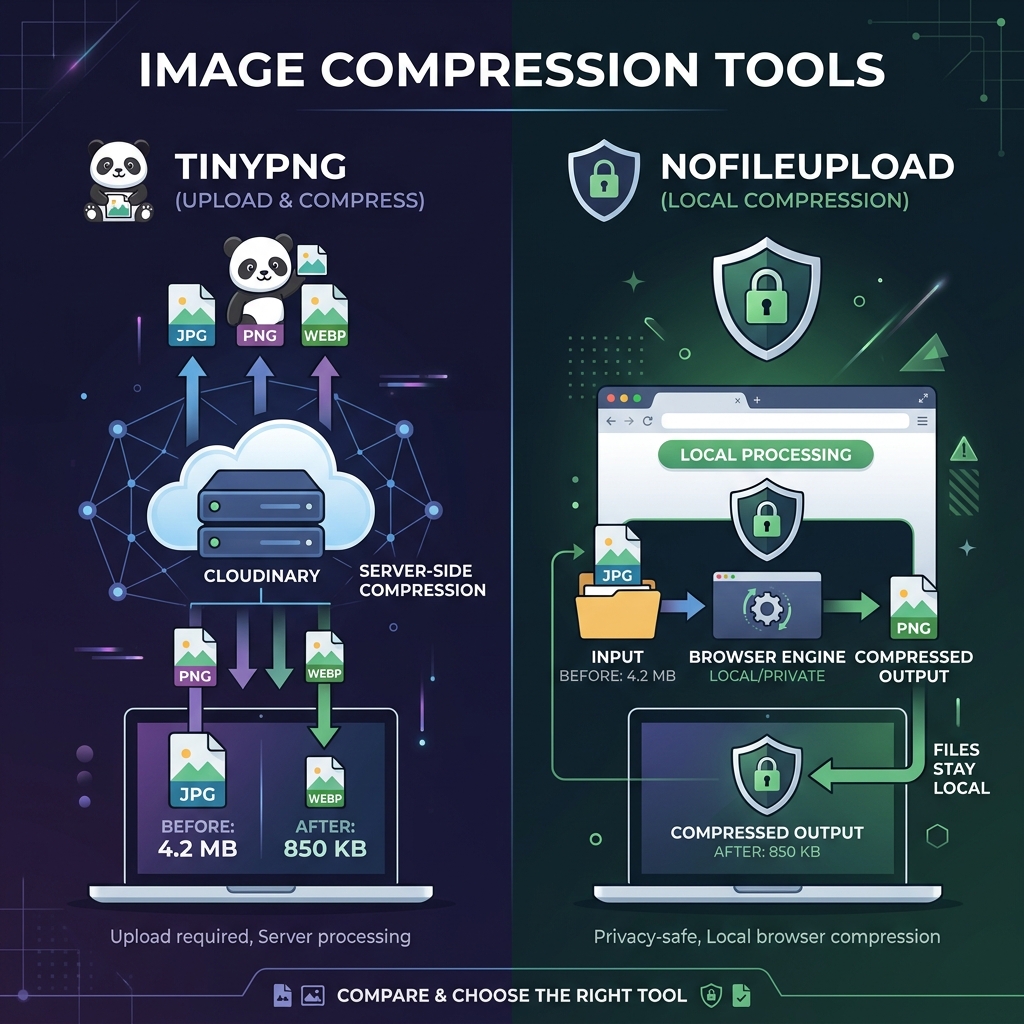
If you've ever needed to shrink a JPEG or PNG file before uploading it somewhere, there's a decent chance you've used TinyPNG. It's one of the first results that shows up when you search for image compression online, and for good reason — it's simple, fast, and it genuinely does a good job of shrinking files without destroying quality.
But here's the thing most people don't think about: every single image you drop into TinyPNG leaves your computer. It travels to Tinify's servers in the Netherlands, gets compressed there, and then comes back to you. For most photos, that's probably fine. But if you're dealing with images that have personal data in them — GPS coordinates, screenshots of private documents, photos from inside your home — you're sending those to a third party whether you meant to or not.
That's where NoFileUpload is different. Same result, completely different approach: compression happens inside your browser, on your device, with nothing going out over the network.
What actually happens when you use TinyPNG
TinyPNG works through their Tinify API. When you drop a file onto the site, your browser sends a POST request to their servers containing your image. Their backend then runs a lossy compression algorithm — specifically a variant of pngquant for PNGs and mozjpeg for JPEGs — and returns the compressed version.
The compression quality is genuinely excellent. TinyPNG has spent years tuning their algorithms, and the visual quality at the compressed file sizes is hard to beat for a web tool. That part isn't the problem.
The problem is the upload itself. Your file, the full original, goes to their servers. TinyPNG's privacy policy says they delete files after a short period, but you're still relying on that policy being accurate, their systems being secure, and your file not hitting any logging or backup systems along the way.
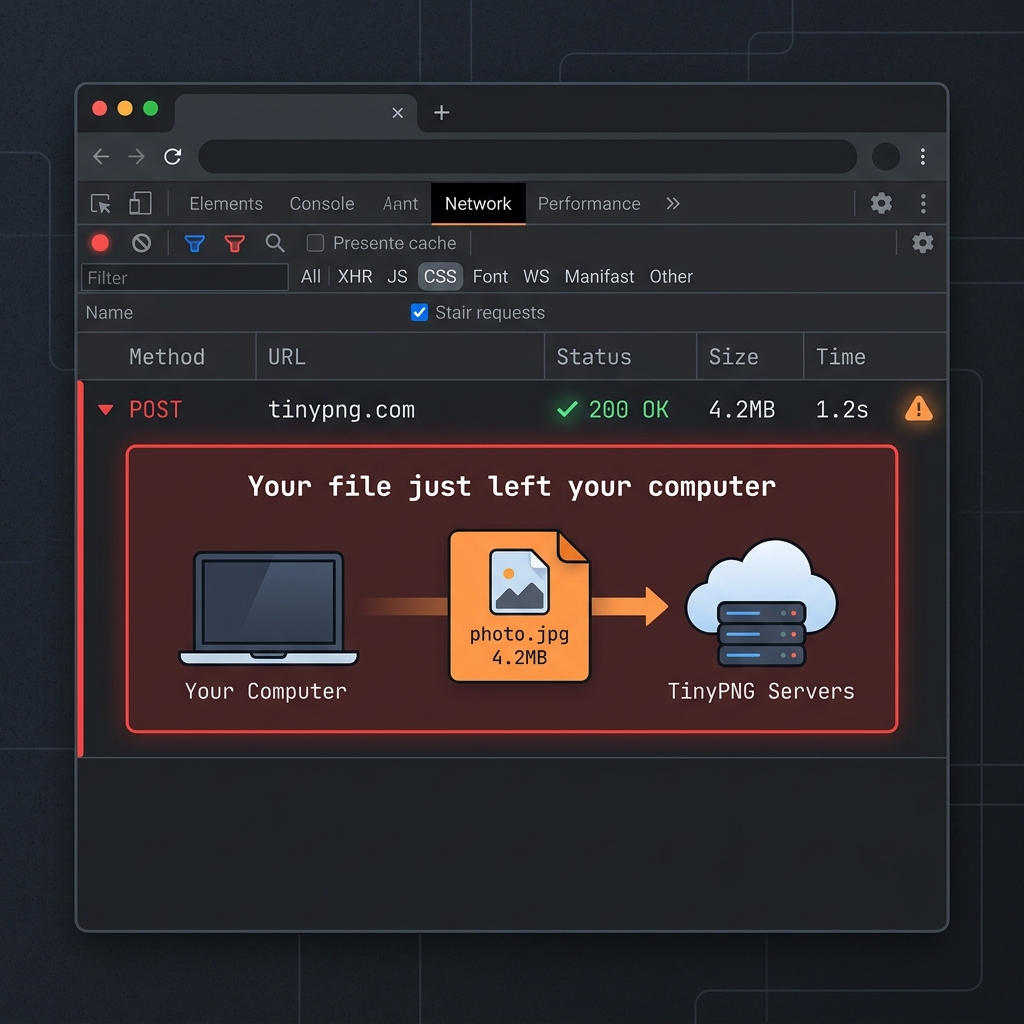
You can actually verify this yourself right now. Open your browser's developer tools (F12, or Cmd+Opt+I on Mac), click the Network tab, and drop an image into TinyPNG. You'll see a POST request fire immediately — that's your file heading out to their servers.
How NoFileUpload compresses images instead
NoFileUpload does the compression entirely in your browser using JavaScript and WebAssembly. When you drop an image in, it's loaded into memory locally and run through compression algorithms that live inside the browser tab itself. The result — the compressed file — is also generated locally and handed back to you as a download.
Nothing goes out. You can open DevTools and watch the Network tab here too — you'll see exactly zero outgoing requests for your image. The processing happens on your CPU, not on some server you've never seen.
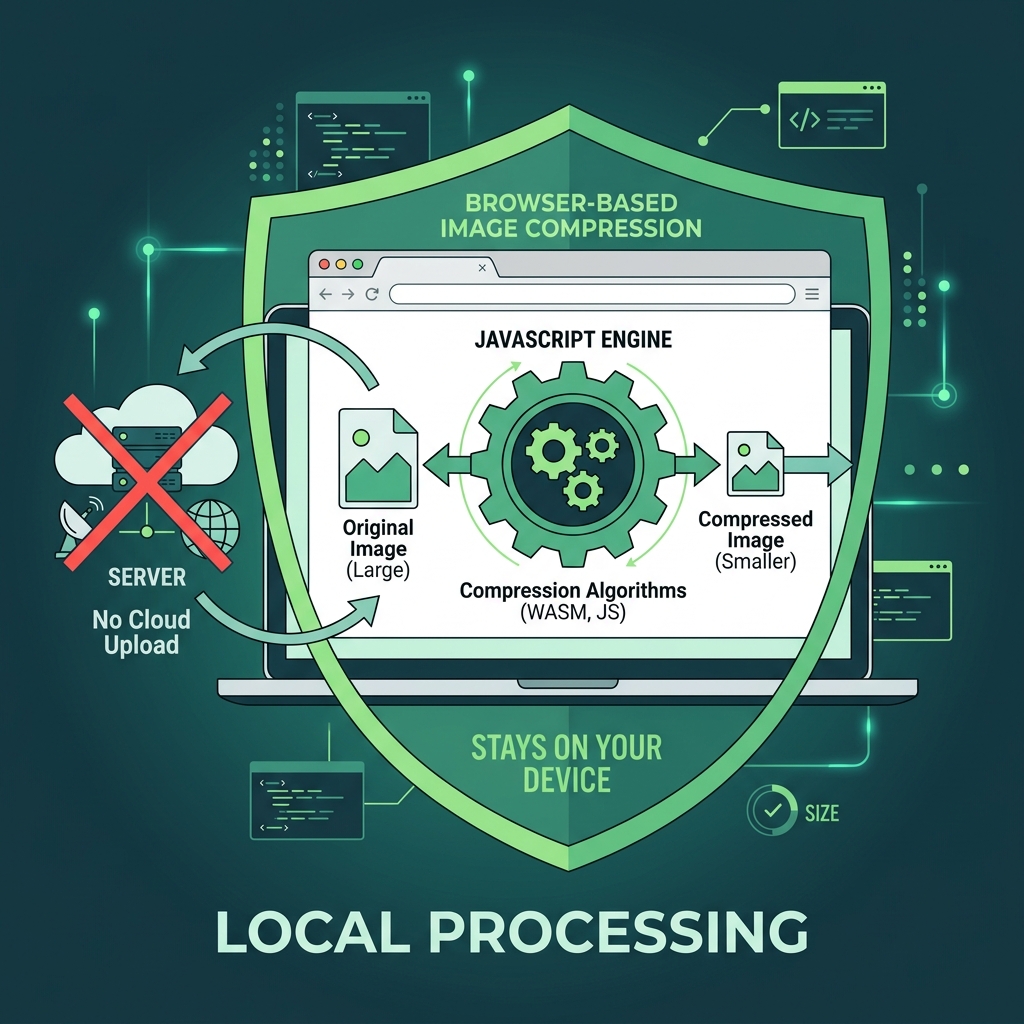
The practical upside is also that it works offline after the page has loaded. If you're on a slow connection or traveling, you can still compress images without waiting on server round-trips. And since there's no server processing, there's no queue — it's just as fast on a busy day as a quiet one.
Where TinyPNG is genuinely better
Let's be honest about this. TinyPNG's compression quality is exceptional, especially for PNGs. Their pngquant implementation is very well-tuned, and at certain quality levels — particularly for images with large flat color areas or simple gradients — they can get files smaller than browser-based alternatives while keeping the visuals indistinguishable.
If your priority is squeezing the absolute last byte out of a PNG for a production website, TinyPNG's paid API tier is genuinely competitive. And for people who just don't care about where the file goes, the upload flow is familiar and frictionless.
The free tier does have limits though — you can process up to 20 images per month for free. After that, you need the paid API. NoFileUpload has no such limit.
Side-by-side comparison
| Feature | NoFileUpload | TinyPNG |
|---|---|---|
| Files sent to server | ❌ Never | ✅ Yes (every file) |
| Works offline | ✅ Yes | ❌ No |
| Free image limit | ✅ Unlimited | 20/month (free) |
| Bulk compression | ✅ Yes | ⚠️ Limited (API) |
| JPEG compression | ✅ Yes | ✅ Yes |
| PNG compression | ✅ Yes | ✅ Yes (slightly better) |
| WebP compression | ✅ Yes | ✅ Yes |
| HEIC support | ✅ Yes | ❌ No |
| Remove EXIF / metadata | ✅ Yes | ❌ No |
| Image resizing | ✅ Yes | ❌ No (separate tool) |
| Format conversion | ✅ Yes | ❌ No |
| Account required | ❌ Never | ❌ No (free tier) |
The privacy angle that most people miss
Here's something worth thinking about. People use image compression tools most often when they're preparing photos to share somewhere — social media, email, a website. Often those photos come straight from a phone camera, and phone photos almost always have GPS data baked into the EXIF metadata.
So when you drop a photo of your house or your kid's school into TinyPNG to compress it before sharing — the GPS coordinates of where that photo was taken are embedded in the file. You're now uploading a file that contains a precise location pin to a third-party server, and then sharing the compressed version publicly.
NoFileUpload lets you handle both steps locally: compress the image and strip the EXIF metadata before it ever touches a network. That's a workflow TinyPNG simply doesn't support.
When to use TinyPNG, and when to use NoFileUpload
Use TinyPNG if: you're optimizing PNG files for a production website where every byte matters, you're already paying for the Tinify API in a build pipeline, or the files you're compressing contain no sensitive personal information and you just want the smallest possible file.
Use NoFileUpload if: you're compressing photos from your phone or personal life, you want to process files without them leaving your device, you need bulk compression without limits, or you need to handle more than just compression — like also stripping metadata, resizing, or converting formats in the same workflow.
For everyday use — personal photos, documents, anything you'd rather not hand to a third party — the browser-based approach is the right call. The compression quality is very close, the privacy benefit is real, and you're not handing your files to anyone.
Frequently asked questions
Does TinyPNG upload my images to a server?
Yes. TinyPNG works by uploading your image to Tinify's servers, compressing it there, and returning the smaller file to your browser. Your image travels over the internet during this process. You can verify this by watching the Network tab in your browser's developer tools.
Is there a way to compress images without uploading them?
Yes. NoFileUpload compresses images entirely inside your browser using JavaScript. Your file never leaves your computer — the entire compression process happens locally on your device.
How much does TinyPNG compress images?
TinyPNG typically reduces JPEG and PNG file sizes by 50–80% depending on the image content. Browser-based tools achieve similar compression ratios — you're unlikely to notice the difference in most real-world cases.
Can I compress multiple images at once without TinyPNG?
Yes. NoFileUpload supports bulk image compression with no monthly limits. You can drop in multiple files and compress them all at once, entirely locally.
Image Compressor
Compress JPEG, PNG, and WebP images with a quality slider. Reduce file size instantly — no uploads, no quality guessing.