How to Remove GPS Location from Photos Before Sharing
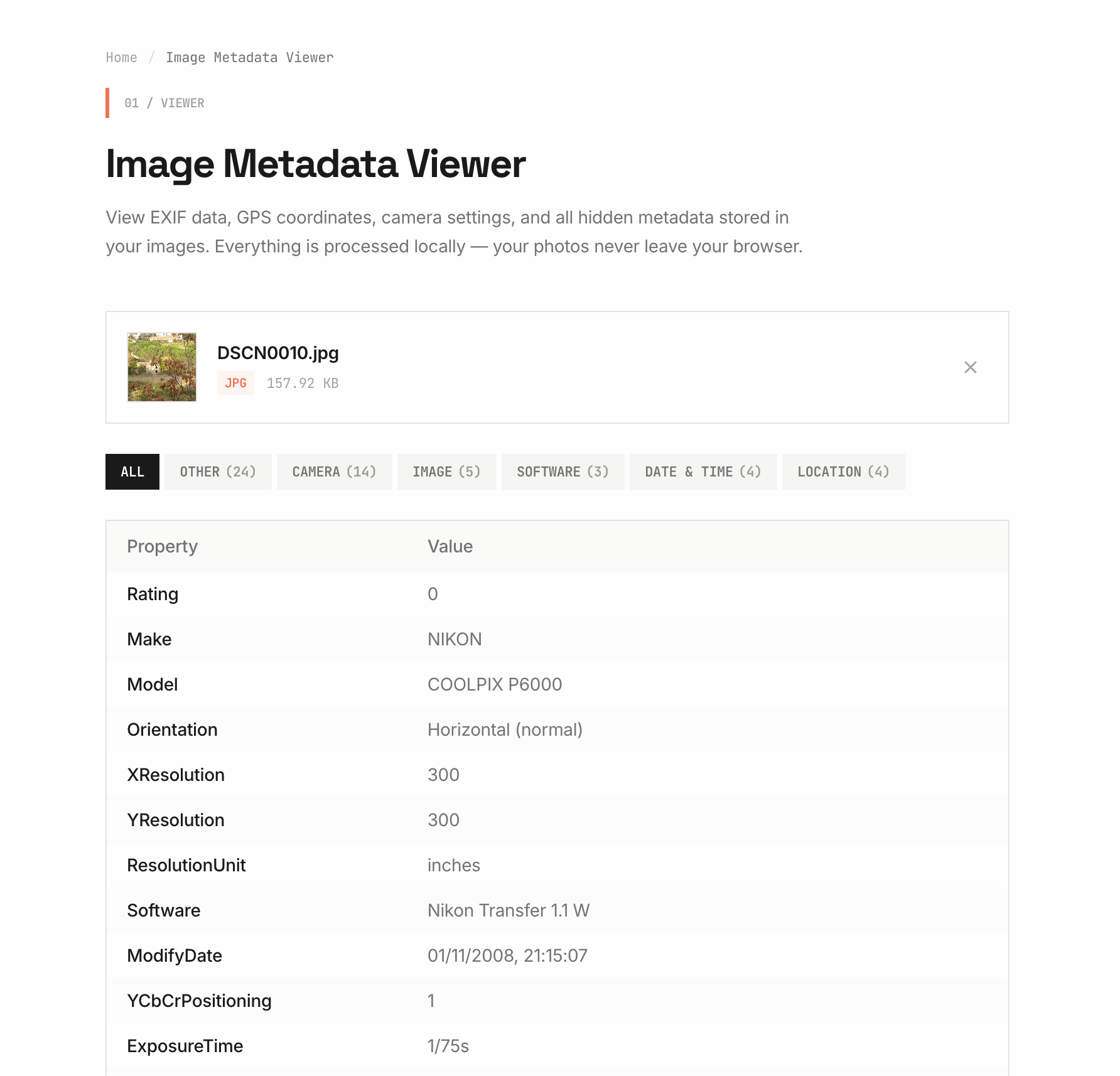
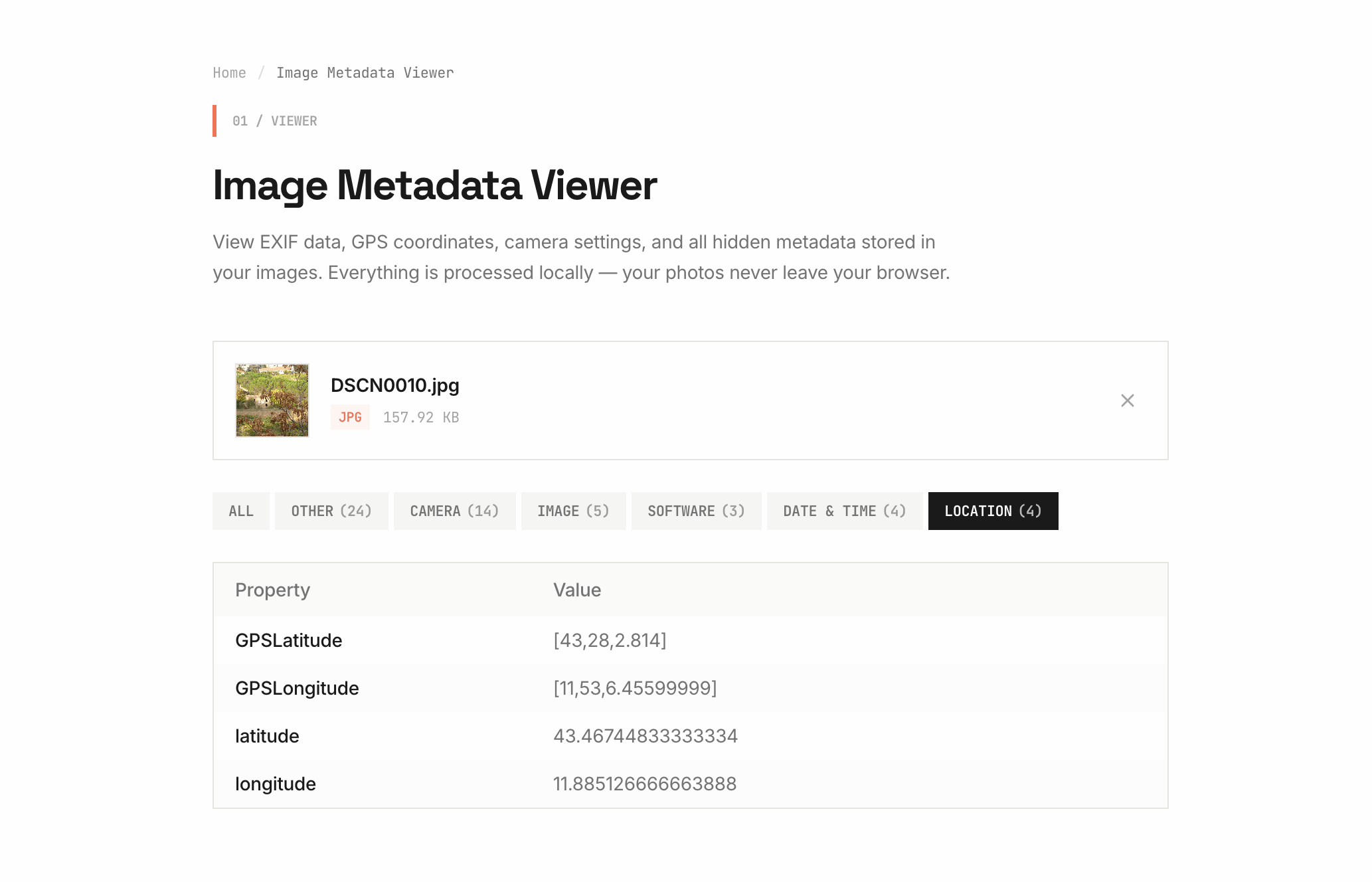
Here's something most people don't think about: every time you take a photo with your phone, it saves your exact GPS location inside the image file. Not just the city — your actual latitude and longitude coordinates, accurate to a few meters.
That means when you post a photo online — on a forum, marketplace, dating app, whatever — there's a chance you're sharing your home address, workplace, or where your kids go to school. And you wouldn't even know it, because this data is invisible unless you know where to look.
Wait, my phone does this?
Yep. Both iPhones and Android phones do this by default. When you open your camera and take a photo, the phone tags it with your current GPS coordinates. This is part of what's called EXIF data — a chunk of hidden information that gets saved alongside the actual image.
Besides GPS, EXIF data can include:
- Exact date and time the photo was taken
- Your phone model (like "iPhone 15 Pro" or "Samsung Galaxy S24")
- Camera settings (aperture, shutter speed, ISO)
- Sometimes even your name, if your device is registered to you
Most people have no idea this info is there. You can't see it just by looking at the photo — you need a tool to read it.
Why is this a problem?
Think about it this way. You take a photo of something you want to sell online. You post it on Facebook Marketplace or Craigslist. Someone downloads that image, checks the EXIF data, and now they know exactly where you live.
Or maybe you post a photo on Reddit or a forum. You think you're anonymous, but the GPS data in your photo says otherwise.
This isn't a theoretical problem. There have been real cases of people being tracked, stalked, or doxxed because of photo metadata. Journalists and activists in sensitive situations are especially careful about this — but honestly, everyone should be.
How to check if your photo has GPS data
Before you remove anything, it's a good idea to check what's actually in your photo. You can do this with our Image Metadata Viewer. Just drop your image in and it'll show you everything — GPS coordinates, camera info, timestamps, all of it.
No sign-up, no upload. The tool runs in your browser so your photo never leaves your computer. (That's kind of the whole point of what we do here.)
How to remove GPS and metadata from your photos
Alright, so you've confirmed your photo has GPS data (or you just want to be safe). Here's how to strip it out:
Option 1: Use our free tool (easiest)
Head over to our Image Metadata Remover. Drop your photo in, and it'll give you a clean copy with all the metadata stripped out. GPS, camera info, timestamps — everything gone.
It works right in your browser. Your photo doesn't get uploaded to any server. You download the clean version directly to your computer.
That's it. Seriously, it takes like 3 seconds.
Option 2: Turn off location tagging on your phone
If you want to prevent GPS data from being added in the first place, you can disable location tagging in your phone's camera settings:
On iPhone:
- Go to Settings → Privacy & Security → Location Services
- Scroll down and tap Camera
- Select "Never"
On Android:
- Open the Camera app
- Tap the gear icon (Settings)
- Turn off "Location tags" or "Save location"
Keep in mind — if you turn off location tagging, you won't be able to see where your photos were taken in your gallery app anymore. Some people like that feature for personal use but still want to remove the data before sharing. In that case, just keep location tagging on and use our remover tool before posting.
Option 3: On Windows or Mac manually
You can also remove metadata using your computer's built-in tools, but it's a bit more work:
Windows: Right-click the photo → Properties → Details tab → Click "Remove Properties and Personal Information" at the bottom.
Mac: Open the image in Preview → Tools → Show Inspector → click the GPS tab → hit "Remove Location Info." Note: this only removes GPS, not other metadata.
The downside with these methods is they only partially remove metadata, and it's tedious if you have multiple photos. Our tool strips everything in one go.
Don't social media sites already remove this?
Some do, some don't. Facebook, Instagram, and Twitter strip EXIF data when you upload. But plenty of places don't:
- Forums (Reddit image uploads are usually fine, but direct links may not be)
- Marketplaces like Craigslist or eBay
- Email attachments
- Cloud storage shared links (Google Drive, Dropbox)
- Your own website or blog
- Messaging apps (some strip it, some don't)
The safest approach is just to remove it yourself before sharing. That way you don't have to guess.
Quick summary
- Your phone saves your GPS location in every photo by default
- This data is hidden but easy to extract
- Anyone who downloads your photo can potentially find your location
- Use our Metadata Remover to strip it before sharing
- Or disable location tagging in your camera settings to stop it from being saved
Stay safe out there. It takes 3 seconds to remove this data but it could save you a lot of trouble.
Remove GPS From Photo
Remove only GPS location data from your photos while keeping camera info, timestamps, and other EXIF metadata intact.
Related tools