Why Are iPhone Photos Saved as .HEIC? (And How to Open Them on PC)
If you have ever transferred photos from an iPhone to a Windows PC, tried uploading an image to a government website, or attached a photo to a job application form, you have likely encountered this dreaded error:
"Unsupported file type. Please upload a .JPG or .PNG file."
When you check your iPhone's photo files, you notice the extension is .HEIC instead of .JPG. Why does Apple use this format, why does Windows struggle with it, and how can you convert your photos instantly without handing your personal camera roll to cloud servers? Here is the complete explanation.
What is HEIC?
HEIC stands for High Efficiency Image Container. It is Apple's implementation of the HEIF (High Efficiency Image File Format) standard, developed by the MPEG group (the same standards committee behind MP4 and modern video streaming codecs).
Starting with iOS 11 in 2017, Apple switched the default camera format on all iPhones and iPads from legacy JPEG to HEIC.
Why Did Apple Switch? (The Storage Math)
JPEG is more than 30 years old (created in 1992). When modern iPhone camera sensors grew to 48 megapixels with Live Photos, Deep Fusion, and HDR, standard JPEG files quickly consumed 8 to 12 megabytes per picture.
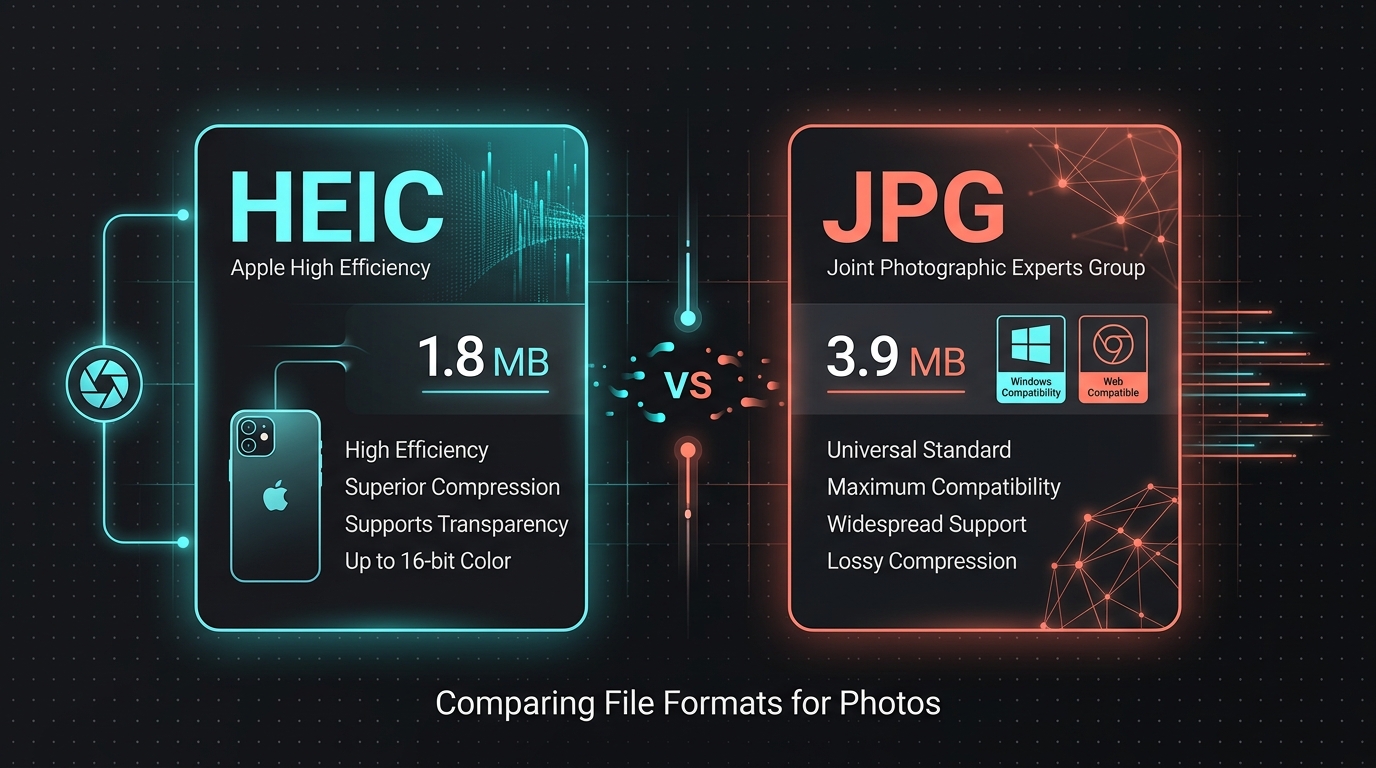
HEIC uses modern HEVC (H.265) compression algorithms. This provides dramatic advantages:
| Feature | HEIC | JPG / JPEG |
|---|---|---|
| File Size | ~40–50% smaller (~1.8 MB) | Standard (~3.9 MB) |
| Color Depth | Up to 16-bit color (wider dynamic range) | Strictly 8-bit color |
| Live Photos & Bursts | Stores photo + video snippet in 1 file | Requires separate JPG + MOV files |
| Transparency (Alpha) | Supported (like PNG) | Not supported |
| Universal Compatibility | Limited outside Apple devices | Works on 100% of devices & browsers |
In simple terms: HEIC allows an iPhone to hold twice as many photos in the same amount of internal storage without any noticeable reduction in picture quality.
So Why Doesn't Windows or Android Just Open It?
If HEIC is so technologically superior, why does Windows 10 and 11 display a blank thumbnail or demand that you buy a "HEVC Video Extensions" codec from the Microsoft Store for $0.99?
The answer comes down to royalties and patent licensing. The HEVC compression standard is patented by multiple patent pools (MPEG LA, HEVC Advance, and Velos Media). Operating systems and hardware manufacturers must pay license fees for every device sold that includes native HEVC decoding out of the box. Apple pays those licensing fees; Microsoft chooses not to bundle it by default.
How to Convert HEIC to JPG in Your Browser (Zero Uploads)
When people need to convert HEIC to JPG, they often Google a converter and upload their family photos, IDs, or vacation memories to random cloud conversion servers.
You do not need to upload your photos to an unknown server. Thanks to modern WebAssembly (Wasm), your browser can run the exact same open-source decoding libraries locally on your device.
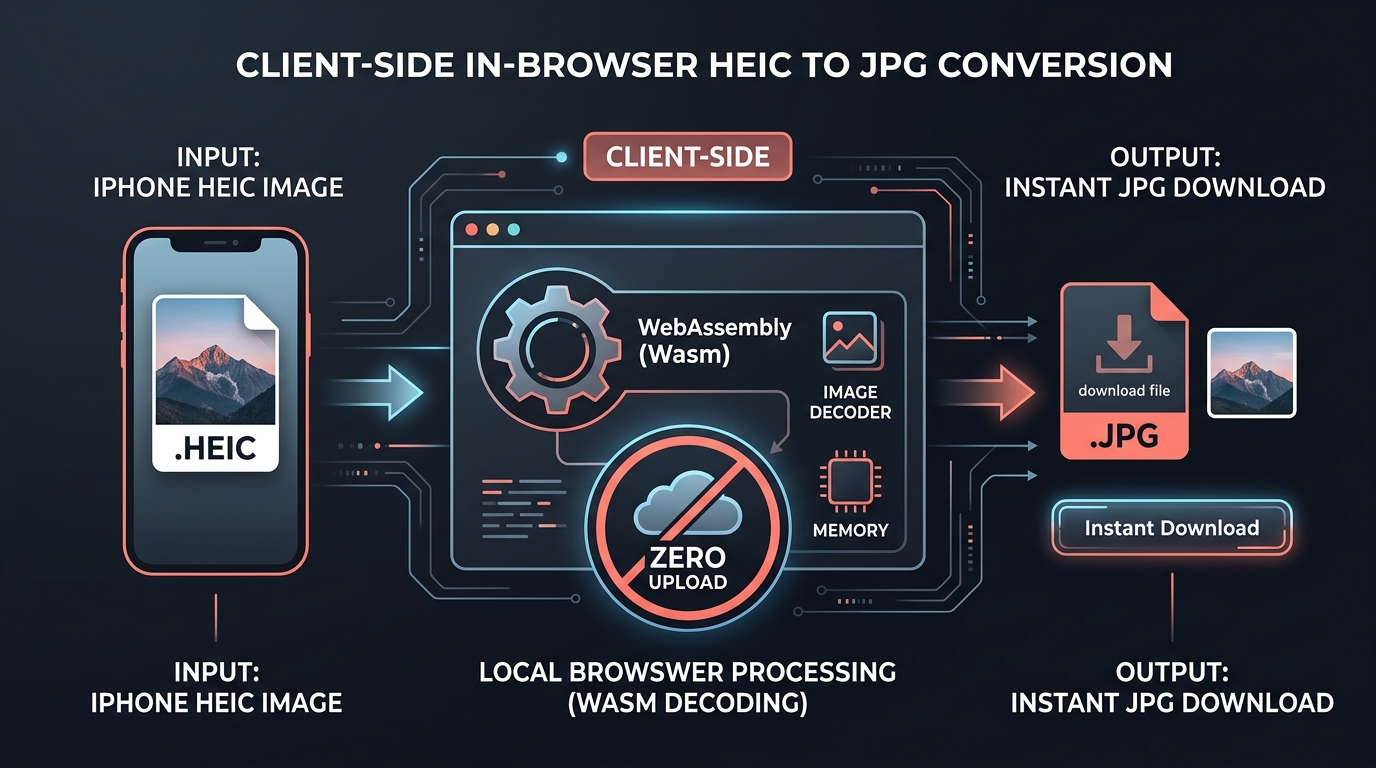
Step-by-step conversion with NoFileUpload:
- Go to the free HEIC to JPG Converter (or use the Bulk HEIC Converter for multiple files).
- Drag and drop your
.heicfile into the dropzone. - Your browser immediately decodes the HEVC bitstream locally in memory and re-encodes it into a crisp, high-compatibility JPEG.
- Click Download JPG. The converted file is saved to your Downloads folder. Zero bytes were sent over the network.
HEIC to JPG Converter
Convert Apple HEIC/HEIF photos to JPG with adjustable quality. Process files locally in your browser without uploading them.
How to Make Your iPhone Shoot in JPG by Default
If you frequently transfer photos to a Windows computer and want to stop your iPhone from ever creating HEIC files in the first place, you can toggle a simple iOS setting:
- Open the Settings app on your iPhone.
- Scroll down and tap Camera.
- Tap Formats at the very top.
- Change the checkmark from High Efficiency to Most Compatible.
Conclusion
HEIC is an outstanding technical format for saving storage space on your Apple devices, but it will remain a source of friction on Windows and legacy web portals for years to come.
Whenever you need to share photos with non-Apple users or upload files to a website that doesn't accept HEIC, use an in-browser converter so your personal photos stay securely on your device.