Guide
How to Change a Photo's Date Taken and Fix Camera Clock Errors
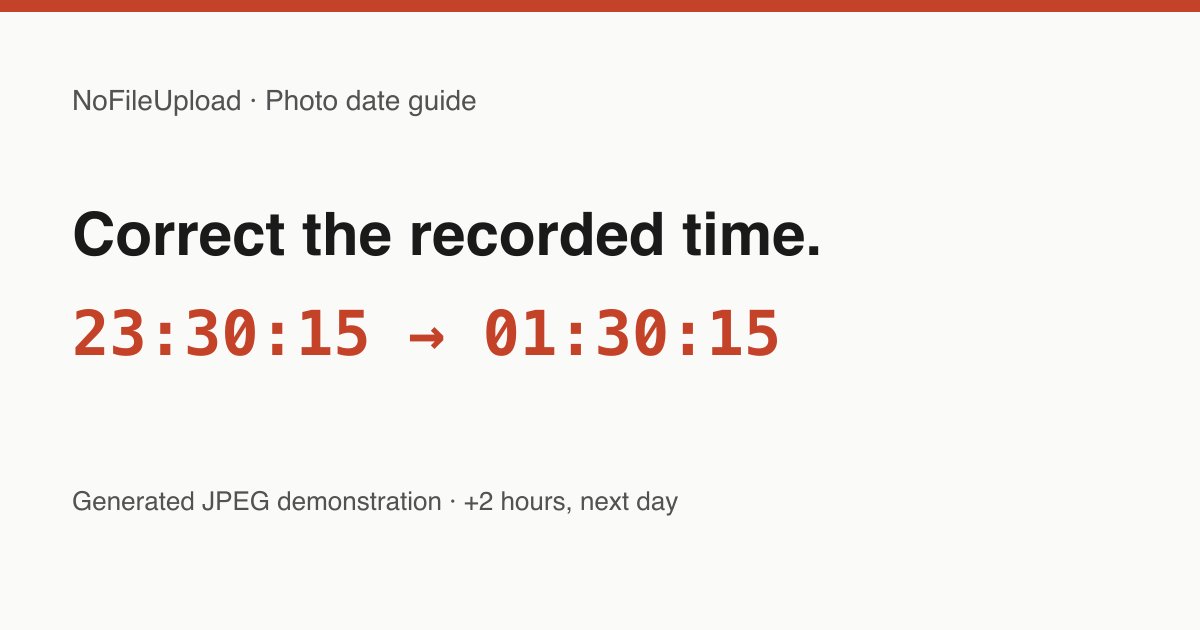
To correct the recorded date taken in a JPEG, edit its EXIF date fields and check the downloaded result. The EXIF Date Changer can set a specific clock time or shift a recorded one by a number of hours. Your image is processed locally in your browser.
Keep the original. A correction changes what the file records; it cannot recover an unknown capture date or prove when a photograph was taken. The downloadable example below shows exactly which values this tool changes.
Date taken and file modified date are different
DateTimeOriginal records the capture clock. DateTimeDigitized, sometimes called CreateDate, records digitization time. The EXIF DateTime field, also called ModifyDate, can describe a modification time inside the image. These are separate from the filesystem creation or modification dates shown by your computer.
Copying or downloading a file can change its filesystem dates. Editing EXIF therefore does not guarantee that a file manager's date column will change. Check which field the destination photo application actually uses before reorganizing an archive.
Correct a clock that was two hours slow
- Open the date changer and select a JPEG copy. Review the existing timestamps before changing them.
- Select Shift Recorded Time by Hours and enter 2. This means the intended clock time is two hours later than the recorded one.
- Choose Apply & Verify Date Change. Review the before/after fields and the verification result.
- Download the updated photo. Inspect that copy again before applying the same correction to other files.
The reference is DateTimeOriginal when available, then the digitized date, then ModifyDate. The shifted reference is written to all three date fields. Their original differences are not maintained. If you need to edit those fields independently, use an editor that offers that control.
Download a tested before/after example
We generated a demonstration JPEG, added dates and a +05:30 offset, and processed it with the same date-writing function used by this tool. This is a synthetic example, not an original camera capture. It contains no GPS coordinates or device serial numbers.
- Download the JPEG before correction
- Download the JPEG after adding two hours
- Download the same image without EXIF dates
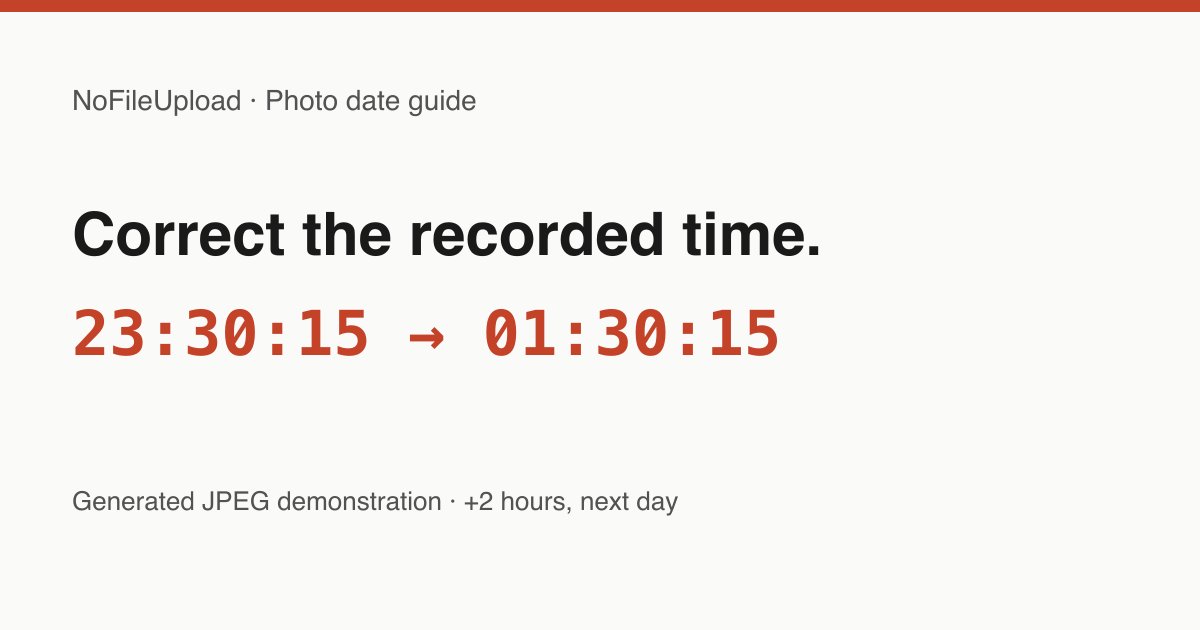
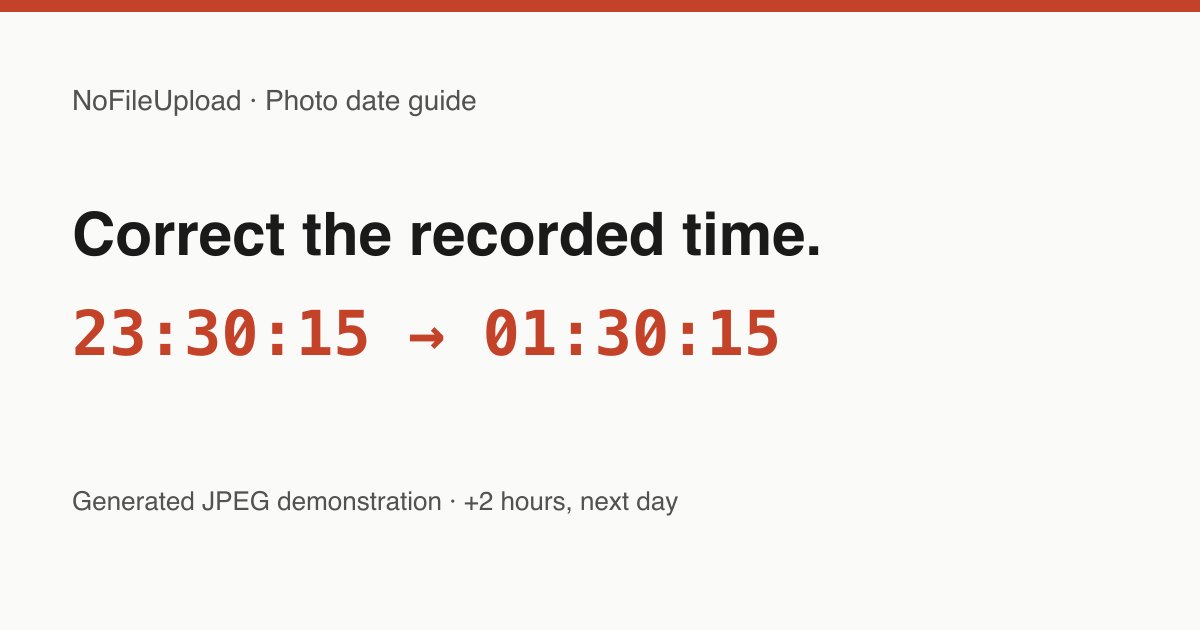
| Field | Before | After +2 hours |
|---|---|---|
| DateTimeOriginal (date taken) | 2024:09:20 23:30:15 | 2024:09:21 01:30:15 |
| DateTimeDigitized / CreateDate | 2024:09:20 23:35:00 | 2024:09:21 01:30:15 |
| DateTime / ModifyDate | 2024:09:21 08:10:00 | 2024:09:21 01:30:15 |
| OffsetTimeOriginal | +05:30 | +05:30 (unchanged) |
The change crosses midnight and preserves the seconds. OffsetTime and OffsetTimeDigitized also remain +05:30. Removing EXIF from either example restores the exact same underlying JPEG bytes: the picture was not re-encoded. Metadata bytes and file size can still change.
A clock correction is not a timezone conversion
Choose the difference between the recorded and intended clock times. A destination's UTC offset is not automatically the amount you should add to a camera's clock. The tool reads the recorded clock components without converting them through your browser's timezone or daylight-saving rules.
Existing standard timezone-offset tags are retained; this tool does not add or change them. If both the clock and its recorded timezone are wrong, use an editor that updates both. The ExifTool EXIF reference lists DateTimeOriginal and its separate OffsetTimeOriginal tag. Different viewers can display a converted time rather than the raw value, so compare equivalent fields.
What if the photo has no date?
Select Set Specific Date & Time and enter a date you have established independently. A file with no recorded date cannot be shifted: there is no starting value. The tool will ask you to choose a specific date rather than silently using today's date. Try the undated example to see this difference.
This editor supports JPEG input. Keep the original HEIC, TIFF, RAW, or other source if you need an editor for that format. Metadata rewriting can omit unsupported fields, so inspect other important information as well. Use the full metadata viewer or EXIF Compare to review a copy. For an overview of capture, location, and device fields, read what EXIF data contains.
EXIF Date Changer
Change the date and time embedded in a JPEG photo's EXIF data — correct wrong camera clocks, fix timezone errors from travel, or update dates on scanned images.