Guide
How to Check an Image's ICC Profile: sRGB, P3, or Untagged
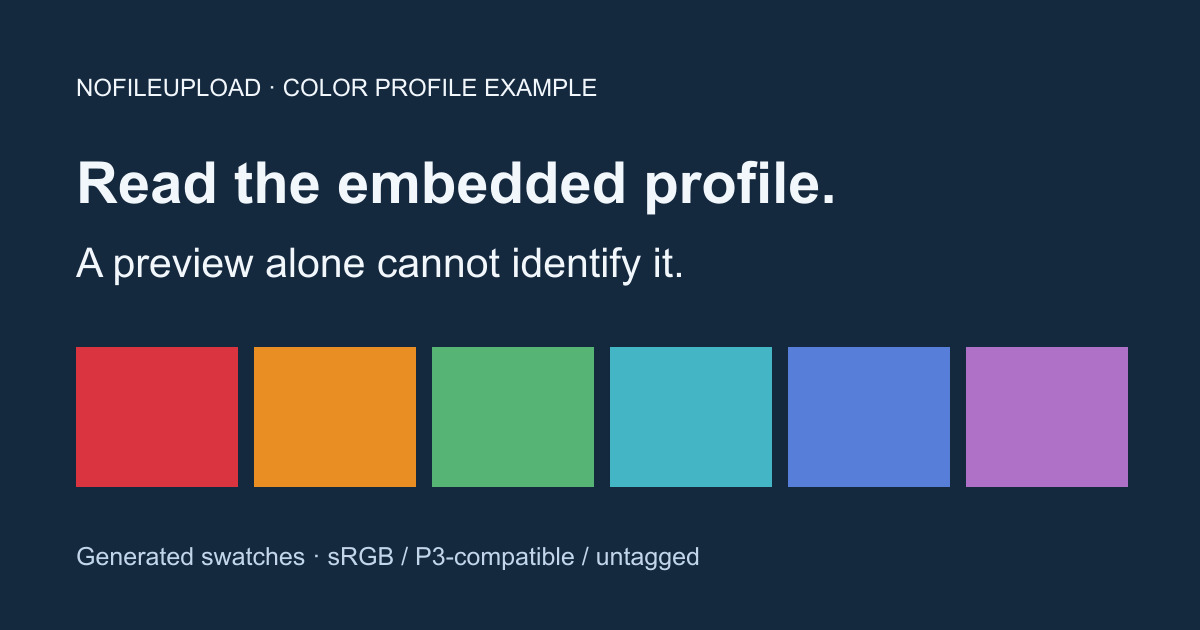
To check an image's embedded color profile, open the original file in the ICC Color Profile Viewer and read its profile description and recorded fields. A preview, a filename, or the phone that took a photo cannot establish whether the file contains sRGB, Display P3, or any ICC profile.
The viewer inspects supported metadata locally. It does not convert colors, assign a profile, measure your screen, or repair incorrect tagging. Keep your original before changing an image in another editor.
Check an embedded ICC profile step by step
- Download one of the original JPEG examples below, or choose a copy of your own image.
- Open the ICC viewer and select that file. Use the downloaded file for this check; a resized or rewritten preview may have different metadata.
- Read Profile Description, Color Space, and the other available fields. RGB describes a broad model; it does not distinguish sRGB from Display P3 by itself.
- If no profile is decoded, record that result without guessing a color space. A read error is a separate result and may require another inspector.
Download three tested examples
We generated the swatch illustration above, exported color-converted sRGB and Display P3-compatible JPEGs, and removed only the ICC segments from the sRGB export to create an untagged copy. These are demonstrations, not camera captures. The swatches originate within sRGB; this is a metadata example rather than a test of your display's ability to show colors beyond sRGB.
- Download the sRGB JPEG — recorded profile description: sRGB.
- Download the Display P3-compatible JPEG — recorded profile description: sP3C.
- Download the untagged JPEG — same JPEG image data as the sRGB copy, with its ICC segments removed.
The tagged exports contain real matrix and tone-response profiles from Compact ICC Profiles, distributed under CC0. The short name sP3C identifies that collection's Display P3 compatibility variant. Other P3 profiles can have different names and sizes. A profile description is editable text, not independent proof that its transform or the image's tagging is correct.
| Field | sRGB example | P3-compatible example | Untagged example |
|---|---|---|---|
| Profile Description | sRGB | sP3C | No profile decoded |
| Color Space | RGB | RGB | Not established by ICC |
| Profile Connection Space | CIE XYZ | CIE XYZ | Not present |
| ICC Specification Version | 4.2.0 | 4.2.0 | Not present |
| Rendering Intent (header) | Perceptual | Perceptual | Not present |
| Media White Point | X=0.9642 Y=1.0000 Z=0.8249 | X=0.9642 Y=1.0000 Z=0.8249 | Not present |
| Profile Size | 480 bytes | 480 bytes | No ICC block |
Both profiles say Display Monitor as their class; that does not mean the files measured your particular monitor. Their profile creation dates are in 2018, even though we generated these images in 2026. A profile's date, platform, and copyright describe the profile, not necessarily the photograph, camera, or image author. The header's rendering intent is also separate from the conversion options an application actually chooses.
Why does the white point look the same?
The examples both record a D50-adapted media white point for ICC color management. The ICC explains why v4 display profiles use D50 for this field. That does not change the Display P3 encoding's D65 white point, documented in the ICC Display P3 registry. Nor is this field a measurement of a photograph's lighting or white balance.
Display P3 and theatrical DCI-P3 are different encodings. The presence of “P3” in a description does not make them interchangeable. Use the recorded profile and the requirements of your destination workflow when exporting.
No embedded ICC is different from inferred sRGB
Applications may interpret an untagged image using a default or another signal such as EXIF ColorSpace or a PNG color-space chunk. Those signals are not an embedded ICC profile. The viewer does not turn them into one or infer what the creator intended. Use the image metadata viewer to inspect other sections, or read the EXIF introduction.
The untagged example is known to come from an sRGB export because we generated it. That history is not recoverable from the missing ICC block alone. If your own file is untagged, check its source or export settings before assigning a profile.
Assigning, converting, and removing a profile are different
Assigning a profile changes the interpretation of existing color values. Converting uses a color-management transform to calculate values for the destination profile. Removing a profile deletes that interpretation data; it is not a conversion to sRGB. This guide's P3-compatible export uses a conversion, rather than attaching a new name to the sRGB JPEG bytes.
If colors look wrong, check which original file and profile your editor uses. Correct an export in a color-managed editor, save a separate copy with the intended profile, and inspect that output again. Do not assume that a general metadata remover or format converter preserves the profile or performs the conversion you need.
What we verified, and what remains outside this check
The three downloads were checked with the actual viewer utility and an independent metadata parser. Native LittleCMS processing decoded and color-converted each image. The verification record contains recorded fields, image hashes, and converted-pixel hashes. These establish the results for these files, not a comparison of screens or universal application support.
The viewer reads supported JPEG, PNG, WebP, TIFF, and HEIC profile fields. Format and profile variants can limit decoding. Structural checks and familiar names do not validate every ICC tag or prove correct colorimetry. For important production files, compare results with your color-managed editor or an independent profile inspector.
ICC Color Profile Viewer
Inspect supported embedded ICC fields, including the recorded profile name, color model, version, rendering intent, and white point. No image upload.